
How Can I Identify My Top-performing and Underperforming Products?
Step 1: Open Trends Overview
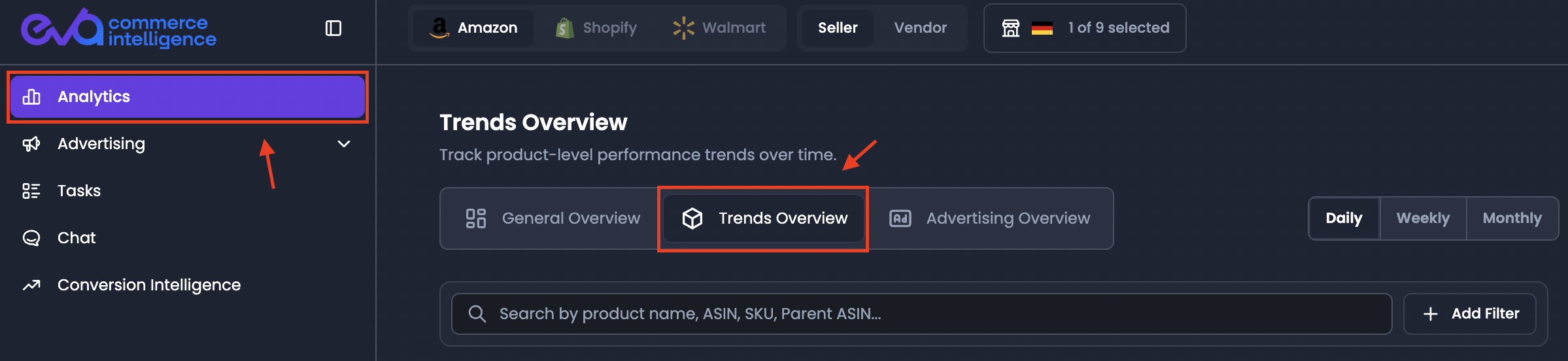
Go to Analytics then Trends Overview to focus on product performance.
Step 2: Use the Search bar (Product Search)
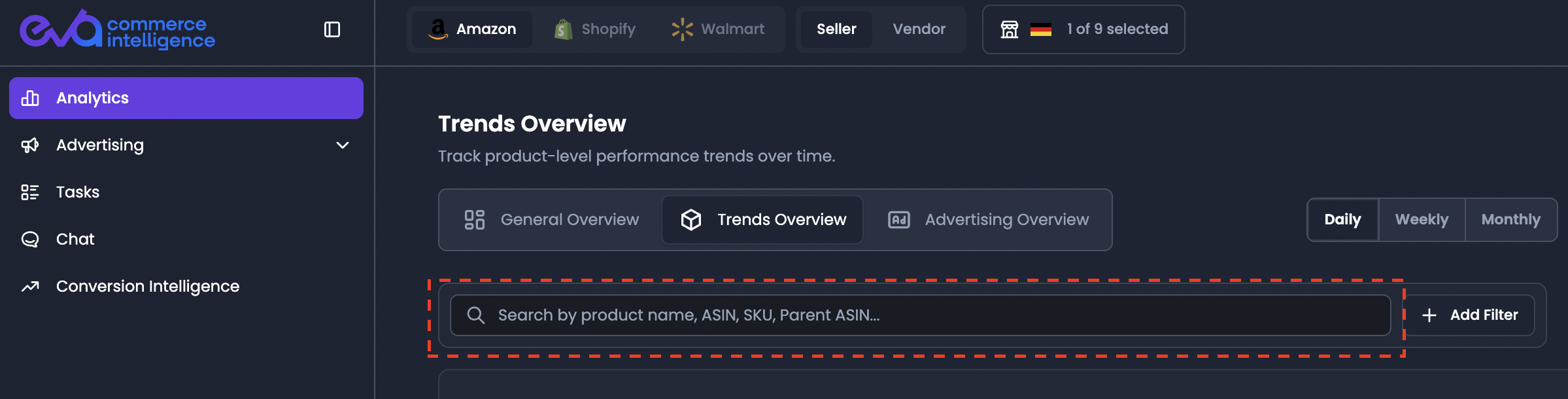
From the search bar below the Trends Overview tab, you can search products using:
- Product name
- ASIN
- SKU
- Parent ASIN
This is the fastest way to jump directly to a product (or product family) before filtering or table comparison.
Step 3: Apply filters (Add Filter + categories)
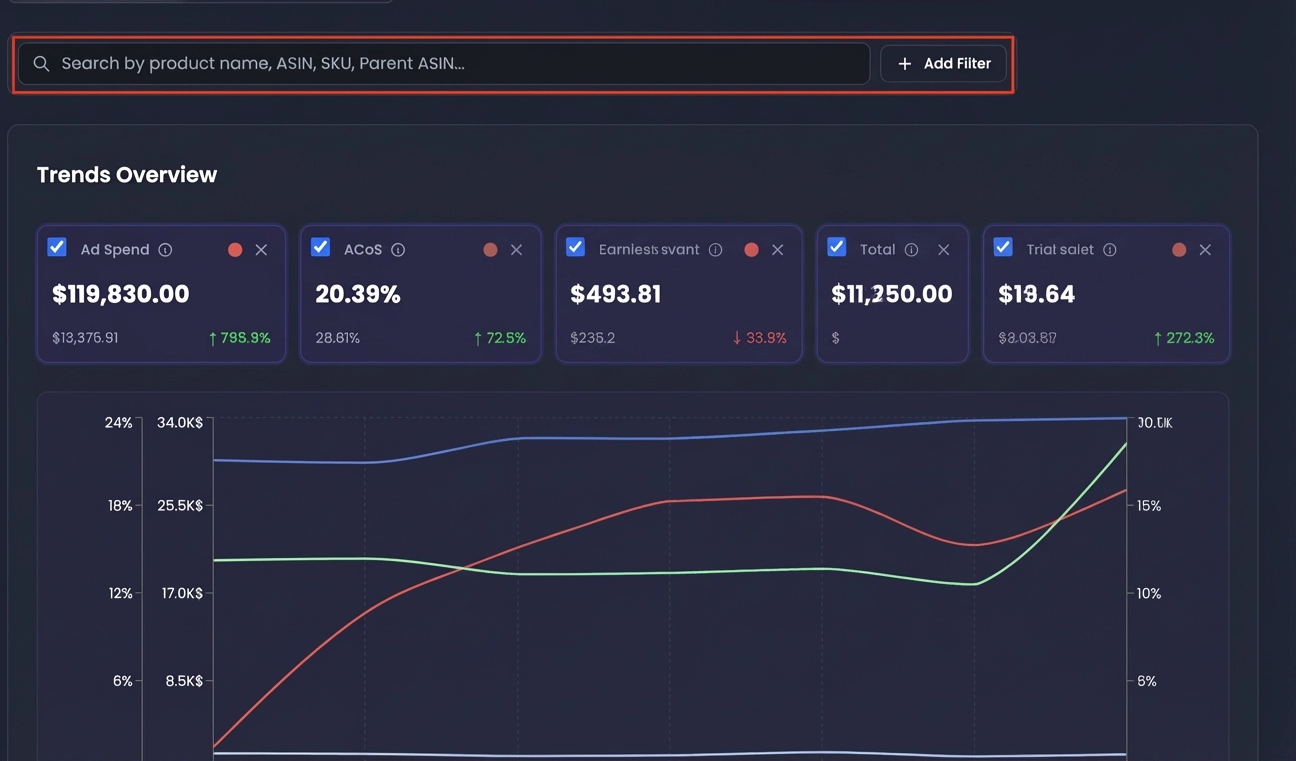
On the right side of the search row, click Add Filter to filter products using category-based metrics. Product filters can be applied by:
- Product info
- Sales and revenue
- Orders and units
- Traffic and sessions
- Costs and fees
- Performance
- Advertising
- Inventory
Selecting a filter category allows the user to operate on a certain metric with a predetermined value.
After selecting a filter, users can choose a comparison operator and amount to view metrics meeting the selectee standards
Step 4: Organize results (Cards vs Table view)

Under Trends Overview, the Products Section is where you view and organize products. The view section can be organized either by:
- Cards View
- Table View
Cards View (visual scan mode)
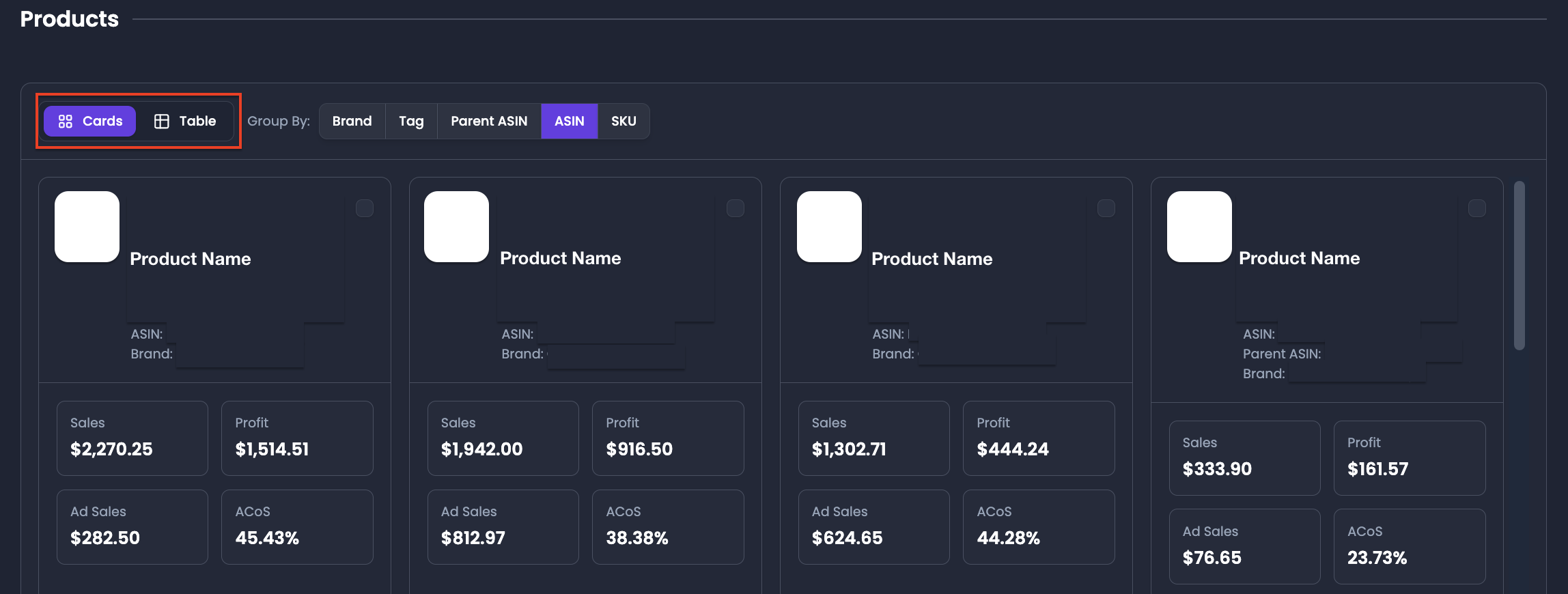
Cards View displays products in a card format and allows you to view:
- Brands
- Tags
- ASINs and SKUs
- The ability to add additional metrics using Columns
Cards include brand name, ASIN, Parent ASIN, and the selected metrics from your current configuration.
Table View (default, detailed mode)
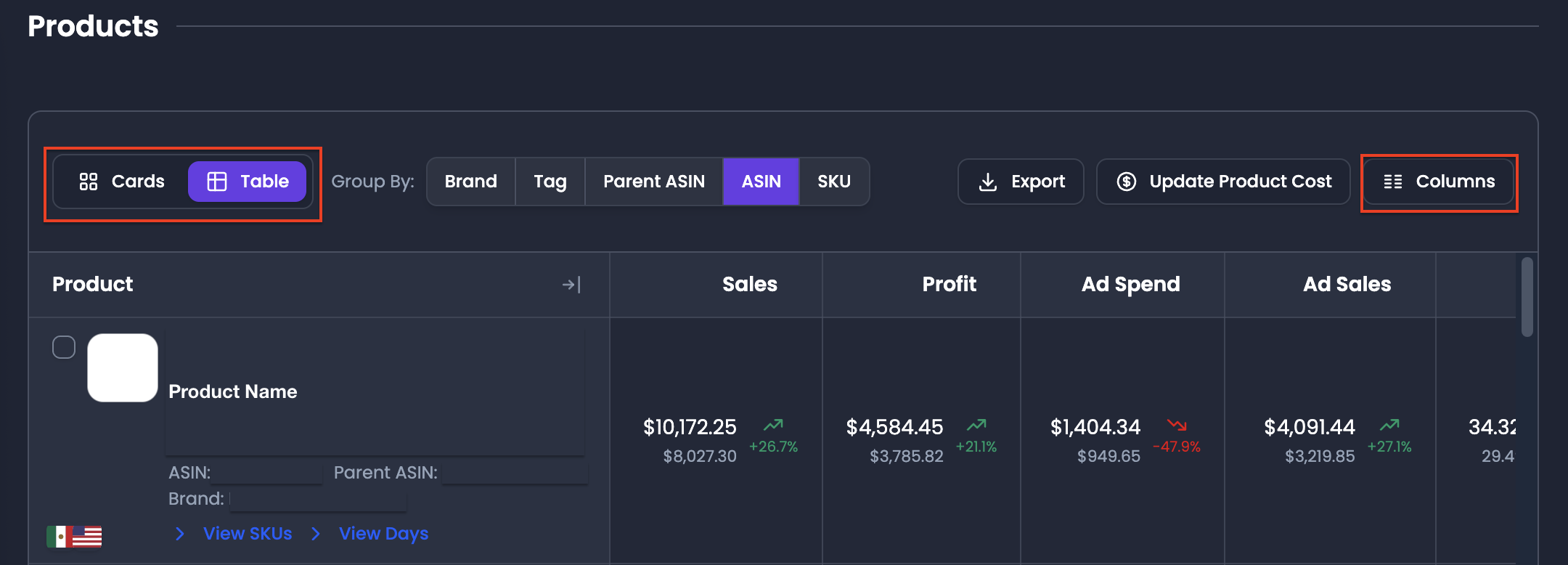
Table View is the default setting in the Products section. It displays:
- Products in a table format (brands, tags, ASINs, SKUs)
- Relevant metrics next to the product column
- Increase/decrease trend for those metrics
- The ability to add additional metrics using Columns
Step 5: Add or change table metrics (Columns + presets)
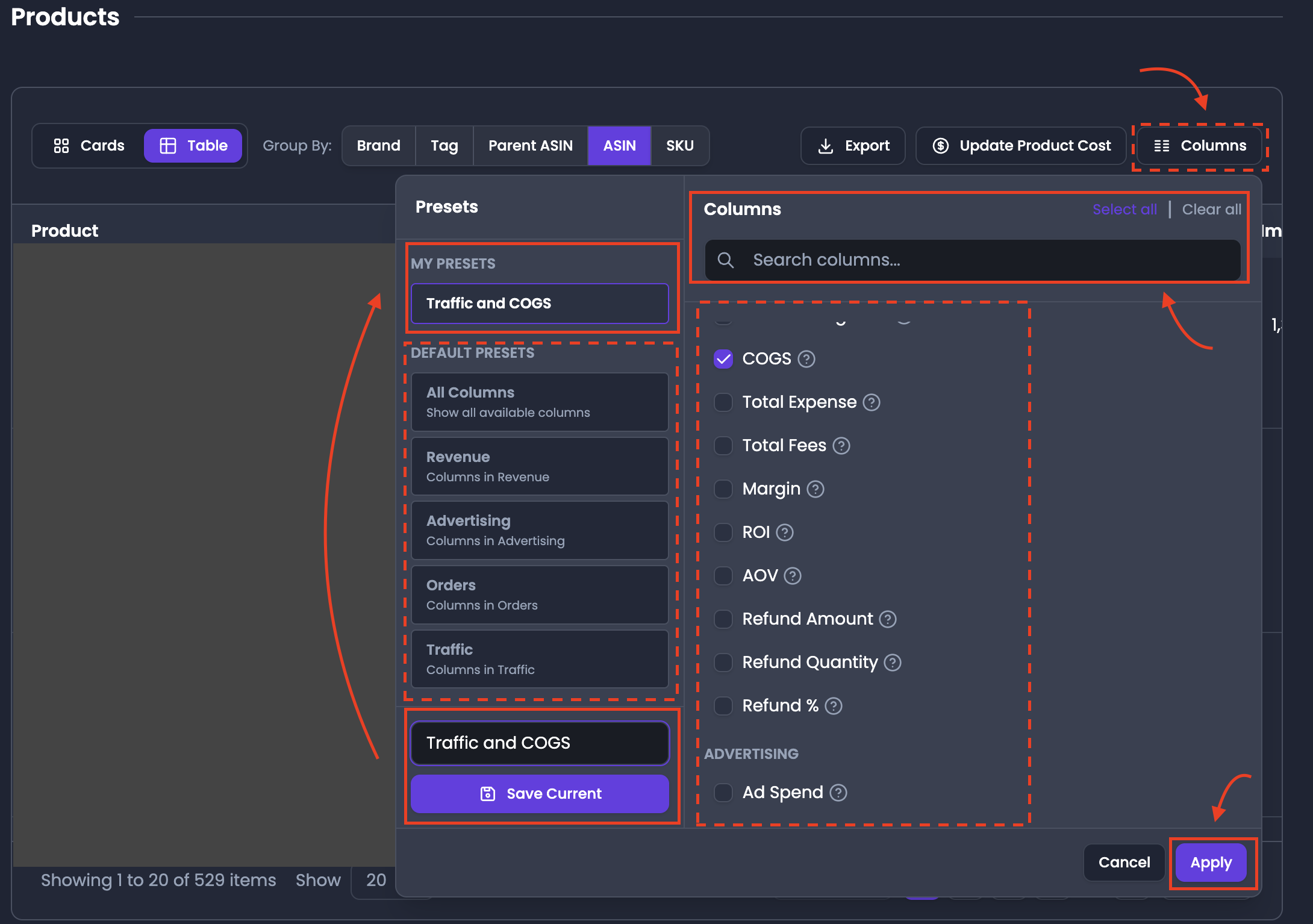
In Table view, click Columns to add additional metrics of interest to the product table.
Columns preset behavior
Users can create and save a preset according to their preferences from the Presets window. Presets can be default or customizable.
Default presets are separated into five categories:
- All columns
- Revenue
- Advertising
- Orders
- Traffic
- Performance
- Other
Clicking a default preset automatically selects relevant metrics for that category. Additional metrics can also be added on top of the default selection.
Save a Columns preset
- Enter a name in Preset Name
- Click Save Current
- After saving, the preset is available for future use.
Step 6: Group products to spot patterns (Group By)

In the Products table controls, use Group By to group products by:
- Brand
- Tag
- Parent ASIN
- ASIN
- SKU
Grouping helps you see whether performance differences come from a brand-level issue, a parent listing issue, or an individual SKU.
Step 7: Export the product list (Export button)

Click Export to export an Excel file based on the grouping the user selected.
This is typically used when you want to share the winner/loser list outside EVA or continue analysis in spreadsheets.