
How Do I Configure Dayparting Rules?
How do I configure dayparting rules?
Dayparting allows advertisers to control how campaigns behave during different hours of the day and days of the week.
Advertising performance often fluctuates throughout the day. Certain hours may generate more traffic, higher conversion rates, or better advertising efficiency, while other hours may produce weaker results.
Instead of applying the same advertising behavior at all times, Dayparting allows advertisers to adjust bids or budgets dynamically based on time-based performance patterns.
Using Dayparting, you can:
- increase bids during high-performing hours
- reduce advertising exposure during low-performing hours
- allocate advertising budget more efficiently throughout the week
- prevent unnecessary spend during periods of low activity
Dayparting rules operate automatically once configured, allowing campaigns to respond to performance trends without requiring constant manual adjustments.
Step 1: Open the Dayparting configuration page
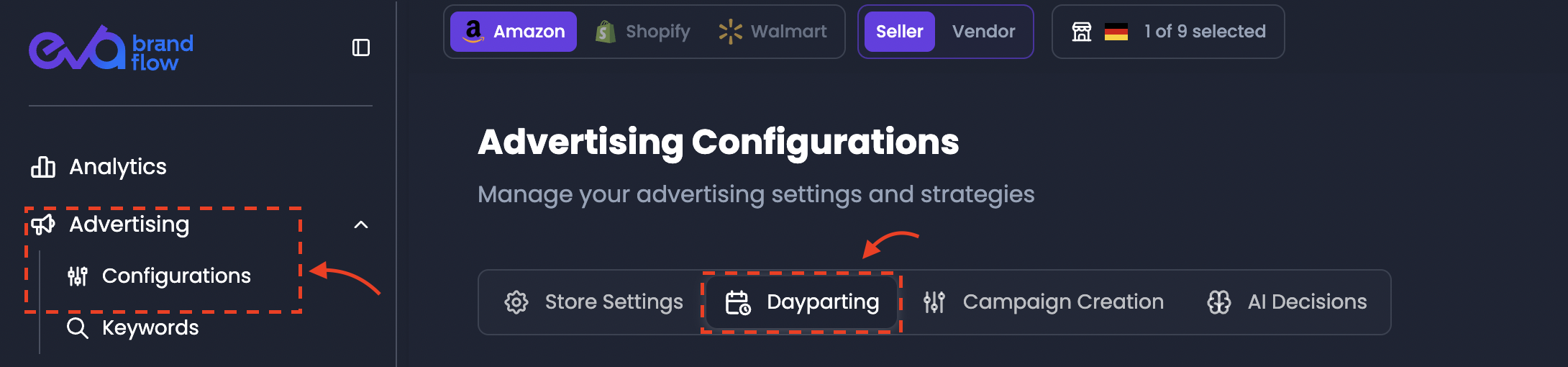
- From the left navigation panel, click Advertising.
- Select Configurations.
- At the top of the page, open the Dayparting tab.
This section contains the Dayparting interface, where time-based advertising rules can be created and managed.
Step 2: Understand the Dayparting heatmap
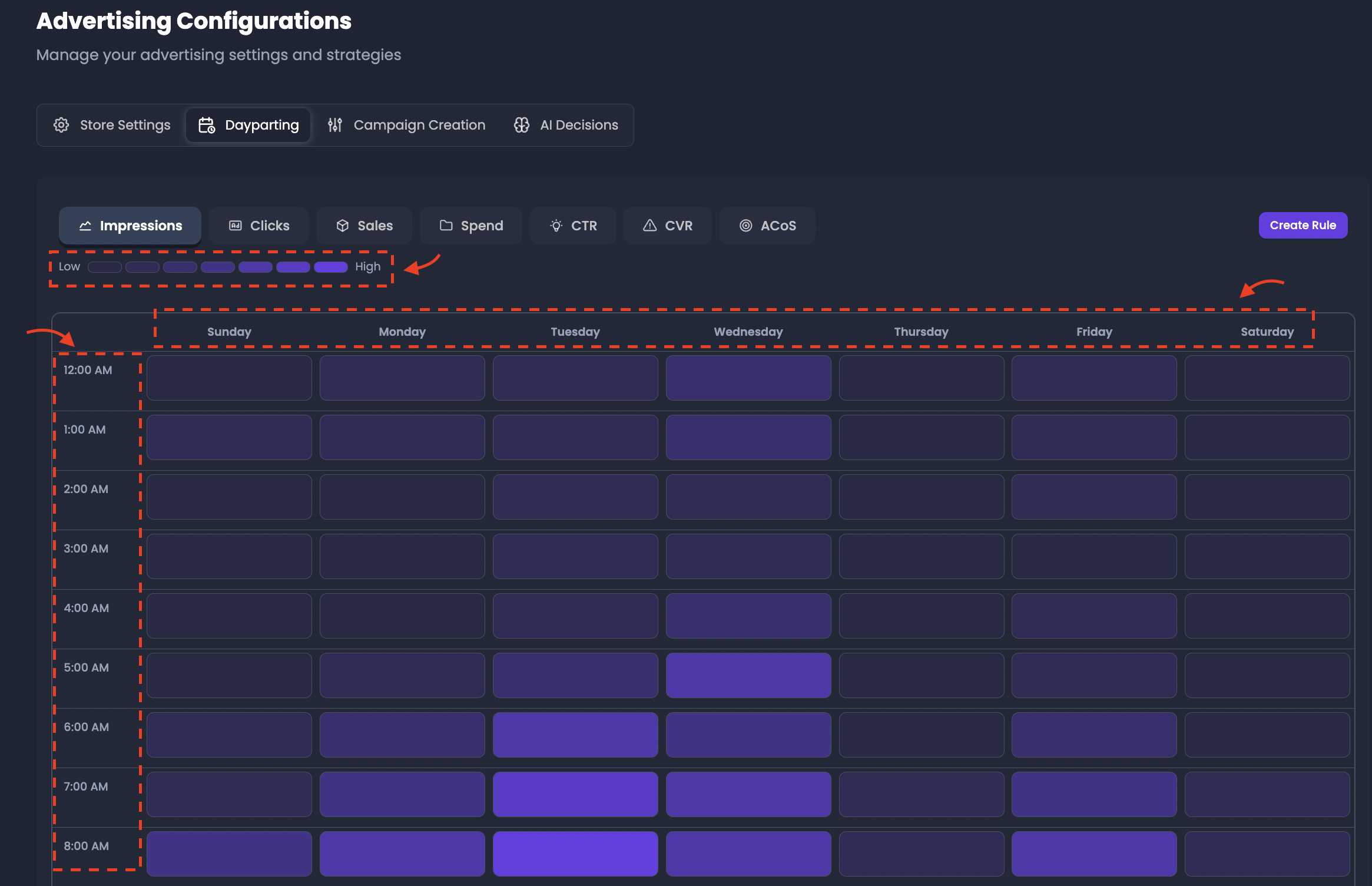
The Dayparting page displays a weekly time grid representing advertising activity across the entire week.
The grid is organized as follows:
- Columns represent the days of the week.
- Rows represent the hours of the day.
Each cell in the grid corresponds to a specific hour within a specific day.
This grid allows advertisers to analyze how advertising performance changes over time.
The interface also includes a metric selector, which allows you to change the metric used to visualize performance patterns in the heatmap.

Available metrics may include:
- Impressions
- Clicks
- Sales
- Spend
- CTR (Click-Through Rate)
- CVR (Conversion Rate)
- ACoS
When a metric is selected, the grid displays a heatmap visualization that highlights how that metric performs across different hours.
Areas with stronger performance typically appear more prominently in the visualization, helping advertisers quickly identify peak performance windows.
By analyzing these patterns, advertisers can determine when advertising activity should be increased or reduced.
Step 3: Identify high and low performance time periods
Before creating Dayparting rules, advertisers should analyze the heatmap to identify performance trends.
For example:
- Certain hours may show consistently high sales or conversion rates.
- Other hours may produce many impressions but low conversions.
- Some time periods may generate higher advertising costs relative to revenue.
These insights help determine where bid increases or budget reductions may improve advertising efficiency.
For example:
- High-performance periods may benefit from bid increases to capture more traffic.
- Low-performance periods may benefit from bid reductions or budget limitations.
Step 4: Select time slots for rule creation
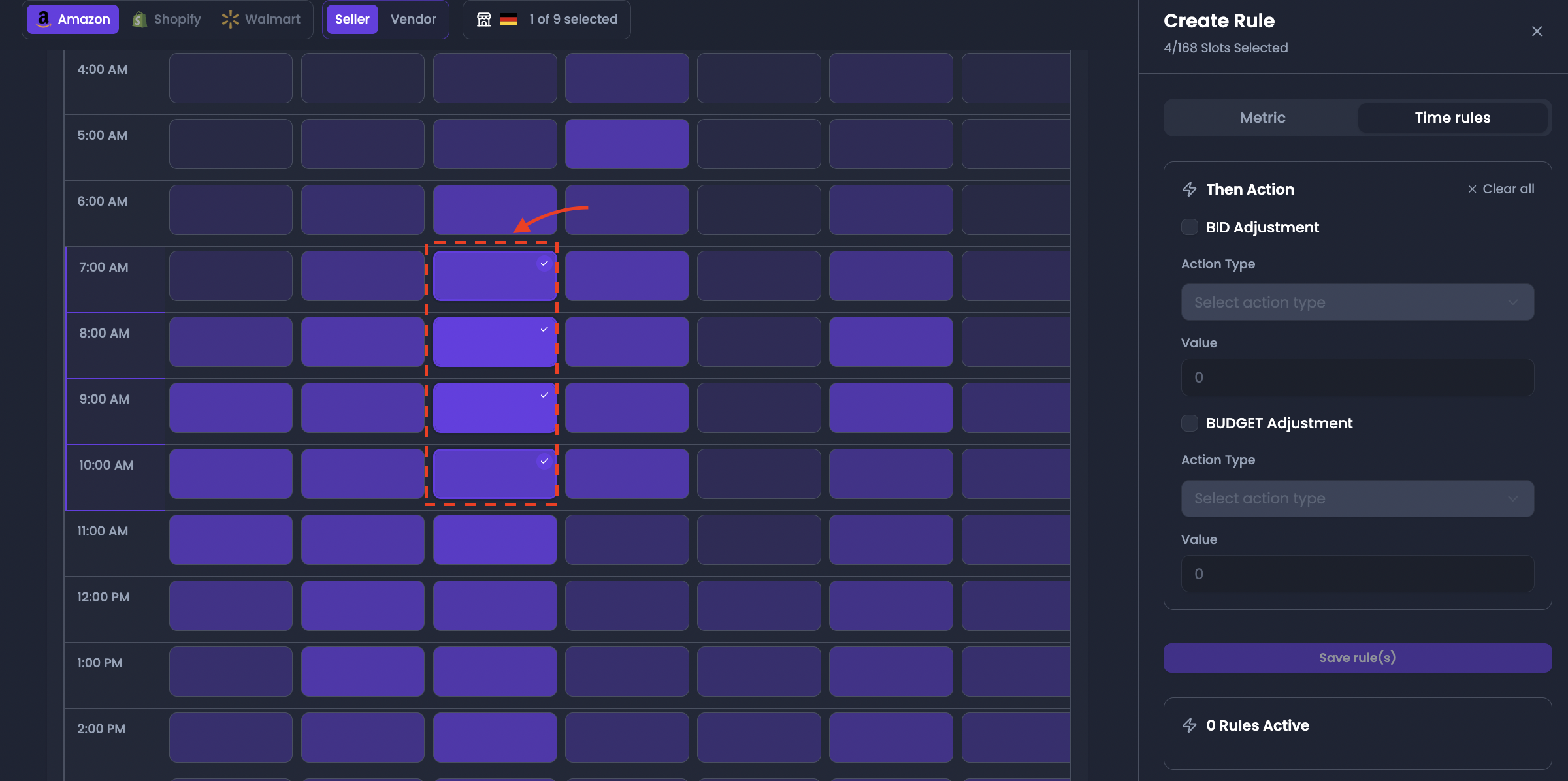
To configure a Dayparting rule:
- Select one or more time slots directly from the grid.
- Selected cells will represent the time windows where the rule will apply.
Multiple cells can be selected simultaneously to apply the same rule across multiple hours or days.
For example:
- selecting several evening hours across the week
- selecting early-morning hours where performance is weak
- selecting weekend hours with strong conversion rates
This flexibility allows advertisers to build precise time-based advertising schedules.
Step 5: Choose the rule type
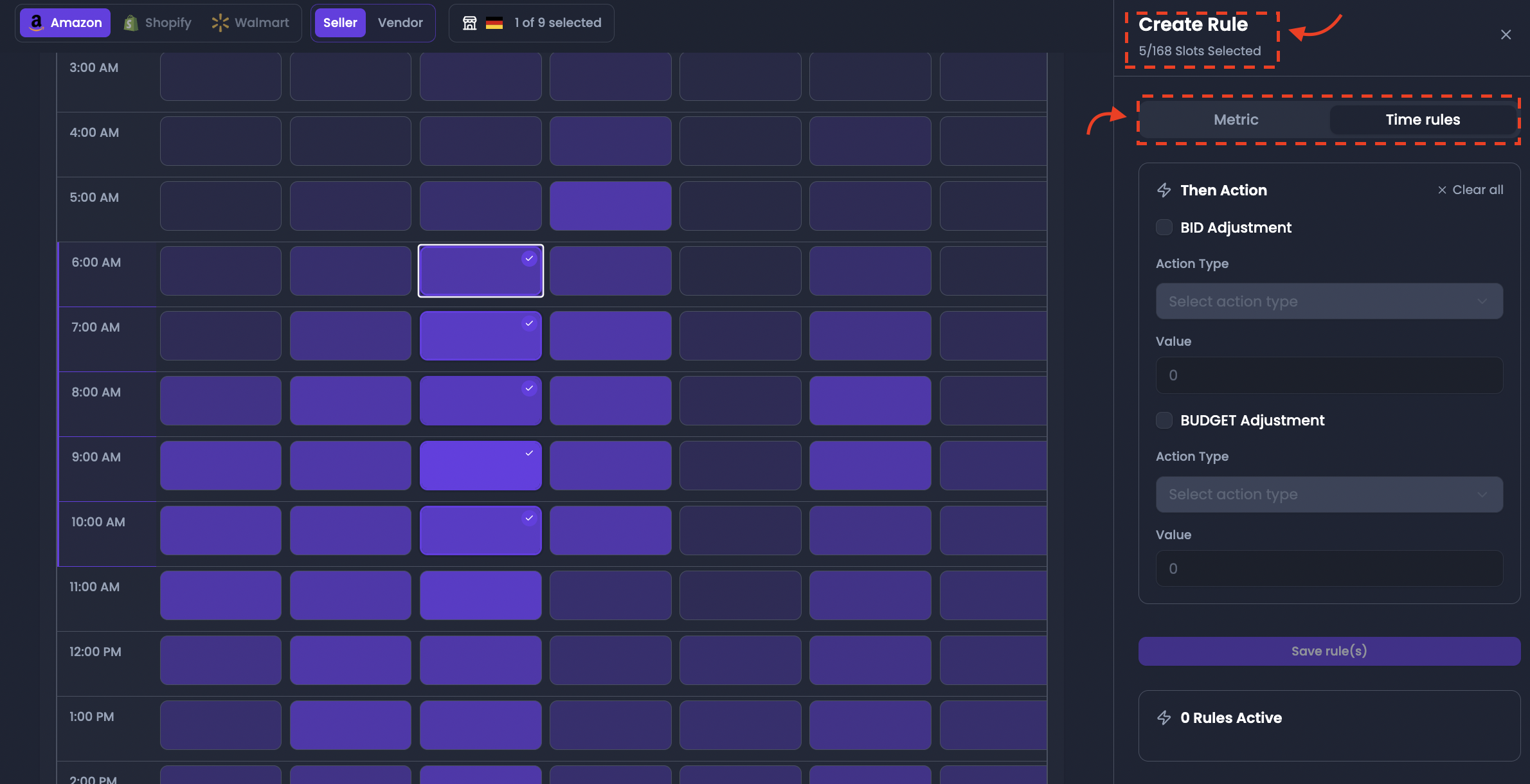
After selecting the desired time slots, the rule configuration panel will appear.
Dayparting supports two primary rule types:
Time-based rules
These rules adjust advertising behavior based strictly on time periods. The action is triggered whenever the campaign enters the selected time window.
Metric-based rules
These rules evaluate performance metrics during the selected time periods before applying the action.
For example, a metric-based rule might reduce bids only when both the time window and performance conditions indicate weak performance.
Step 6: Configure the rule action
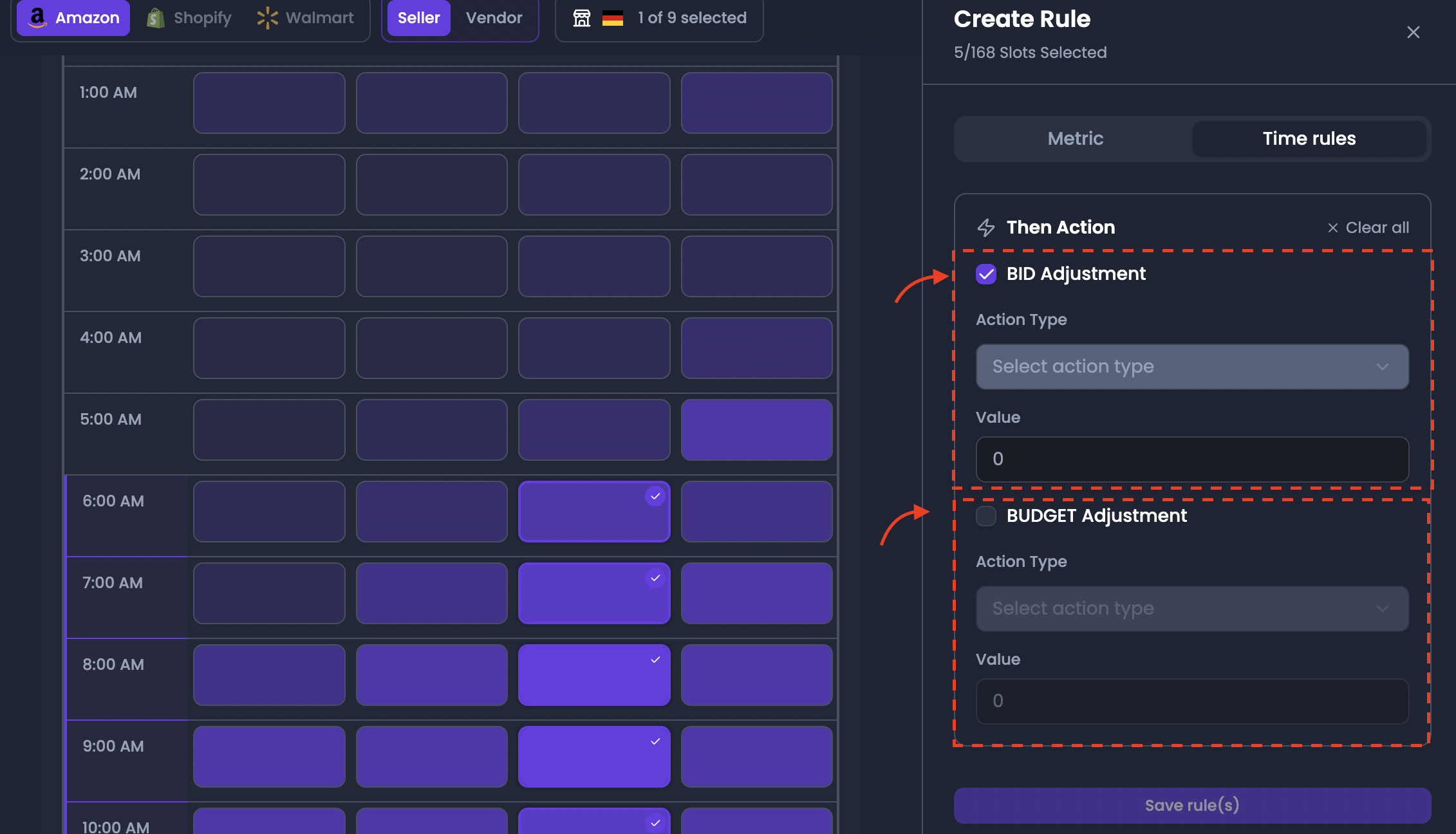
Next, define the action that should occur during the selected time slots.
Common Dayparting actions include:
Bid Adjustment
Adjusts the campaign’s bidding level during the selected hours.
For example:
- increase bids during high-performing hours
- reduce bids during inefficient time periods
Budget Adjustment
Adjusts the available advertising budget during specific time windows.
For example:
- increase available budget during peak traffic hours
- limit spending during periods of weak performance
These actions allow campaigns to allocate advertising resources more effectively throughout the day.
Step 7: Configure rule parameters
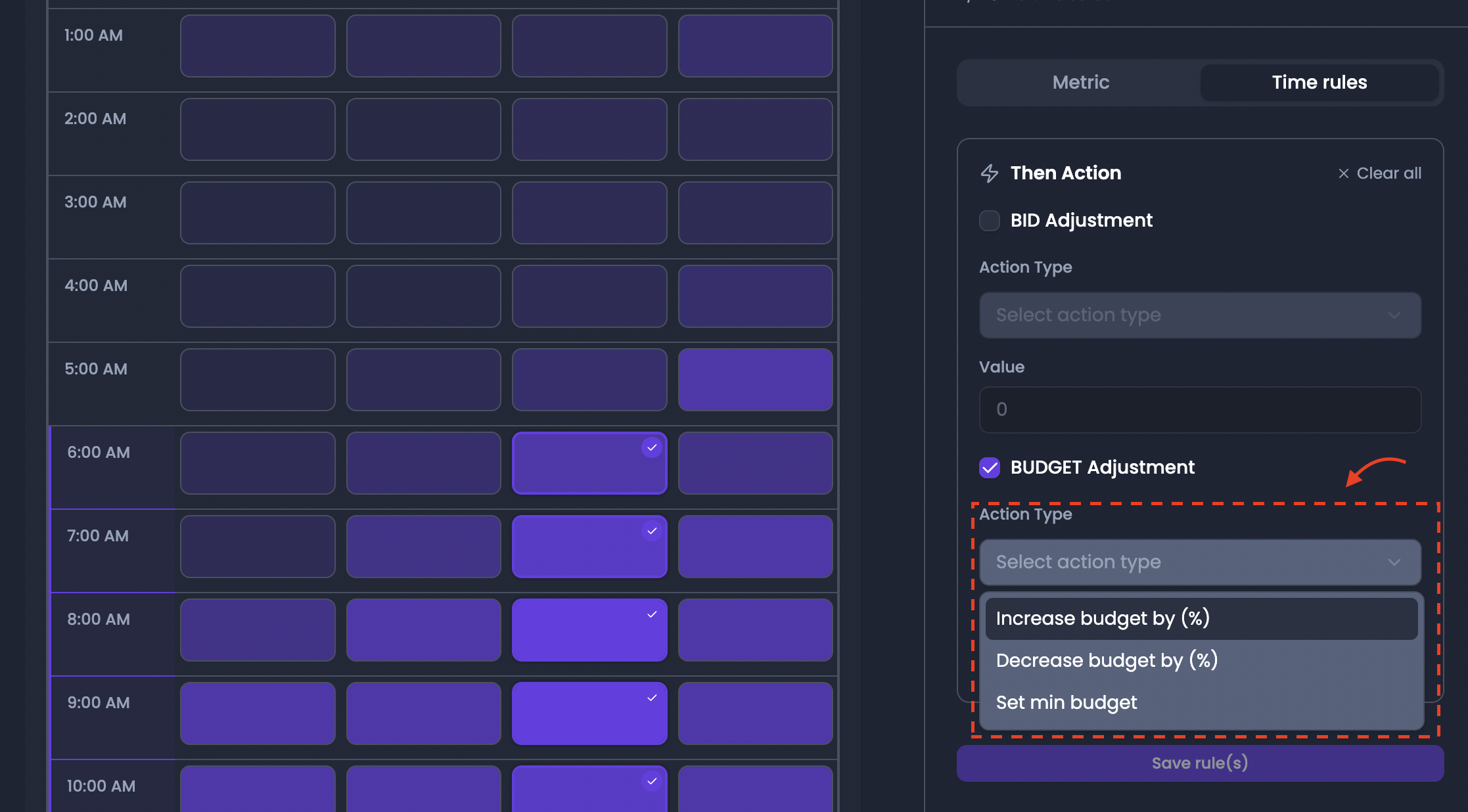
After selecting the action type, configure the rule parameters.
Depending on the action type, this may include:
- The adjustment value
- The bid change percentage
- The budget adjustment level
These values determine how strongly the rule affects campaign behavior during the selected time periods.
Step 8: Save the Dayparting rule
After configuring the rule parameters, click Save rule(s).
The rule will be applied to the selected time slots and will automatically control campaign behavior during those hours.
Multiple Dayparting rules can be created to cover different time windows across the week.
For example, advertisers might configure:
- reduced bids during late-night hours
- increased bids during evening peak traffic
- restricted budget during low-conversion periods
Step 9: Manage multiple Dayparting rules
Advertisers can create multiple Dayparting rules within the same configuration.
These rules are displayed in the Dayparting rules panel, where they can be:
- reviewed
- reordered
- modified
- disabled if necessary
When multiple rules exist, their execution order becomes important, especially if different rules affect overlapping time periods.
Rule priority determines which rule takes precedence when conflicts occur.