
How Do I Use and Navigate the Tasks Page?
Overview
The Tasks Page is the central place where EVA Commerce Intelligence teams manage operational work and support requests. This page is designed to help you see what work exists, who owns it, how urgent it is, and what stage it is currently in. It also helps you organize your work list so daily execution is easier and less error-prone.
Step 1: Open the Tasks Page
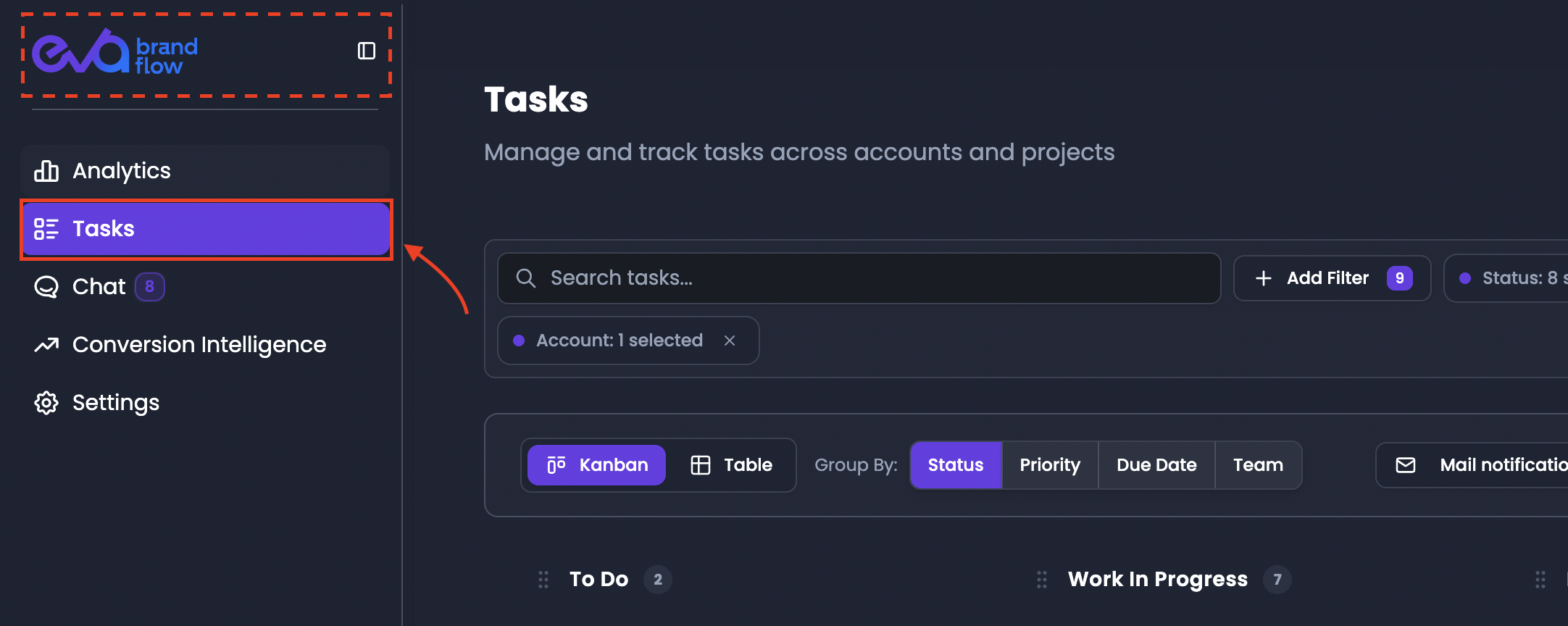
Navigate to Tasks from the main menu.
When the page loads, you will see a list of work items that can include both planned work and urgent issues. The Tasks Page is meant to act as a shared operational “hub,” so users can track and manage execution in one place.
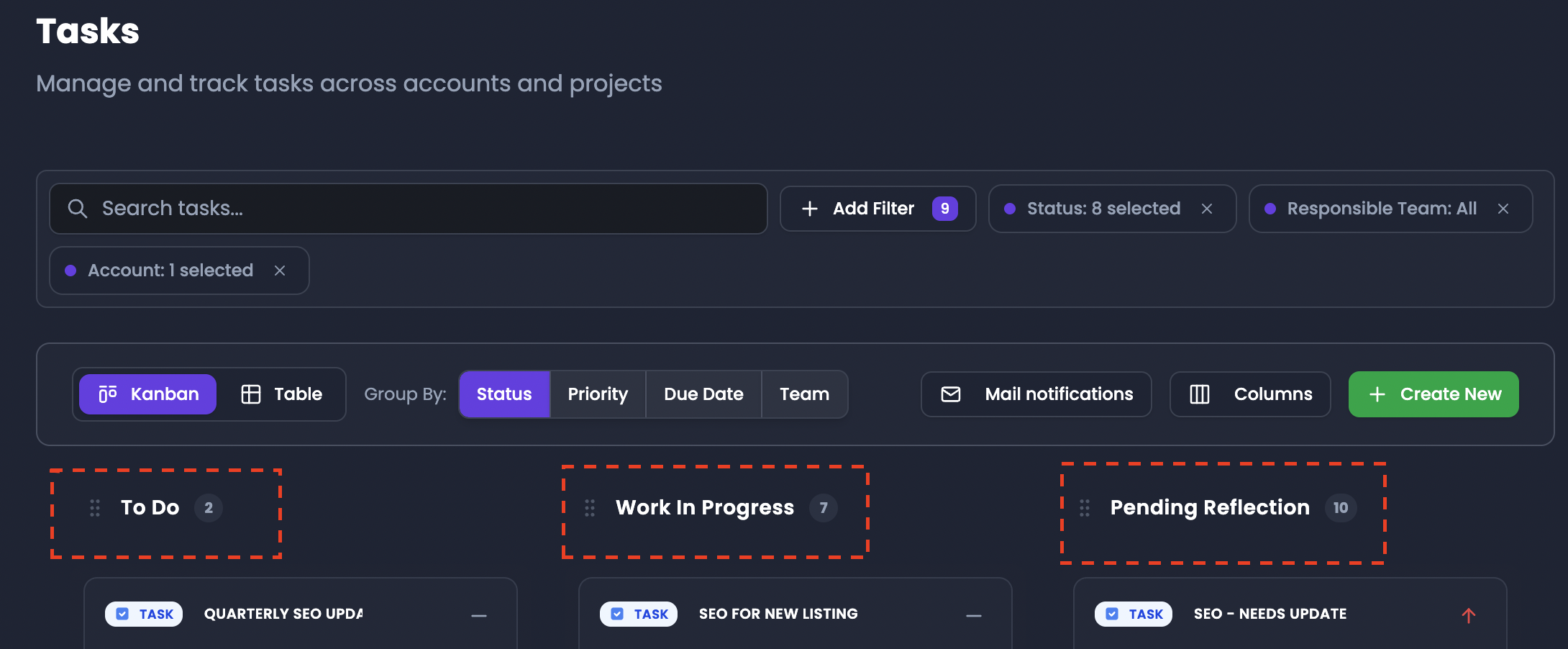
Step 2: Understand what you are looking at (Tasks vs Tickets)
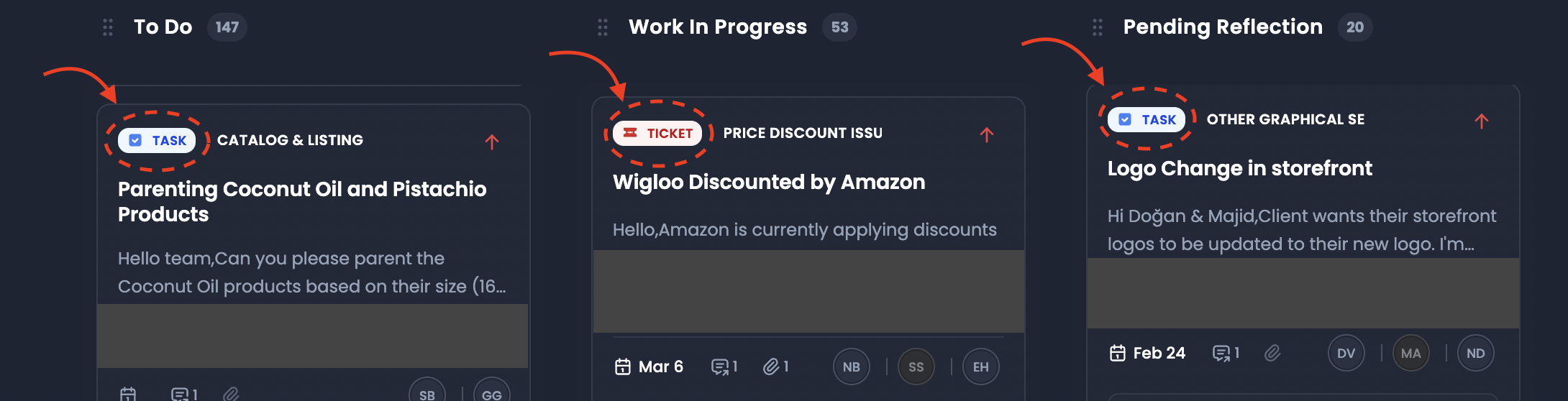
Work items on this page are categorized as either Tasks or Tickets:
- Tickets are created for issues, errors, or urgent problems that require immediate attention and fast resolution.
- Tasks represent planned operational work that may not require urgent action.
You do not manually decide whether an item is a Task or a Ticket. Instead, EVA uses Task Type to determine the classification and assign the correct Responsible Team automatically.
Step 3: Use Search to find specific items quickly
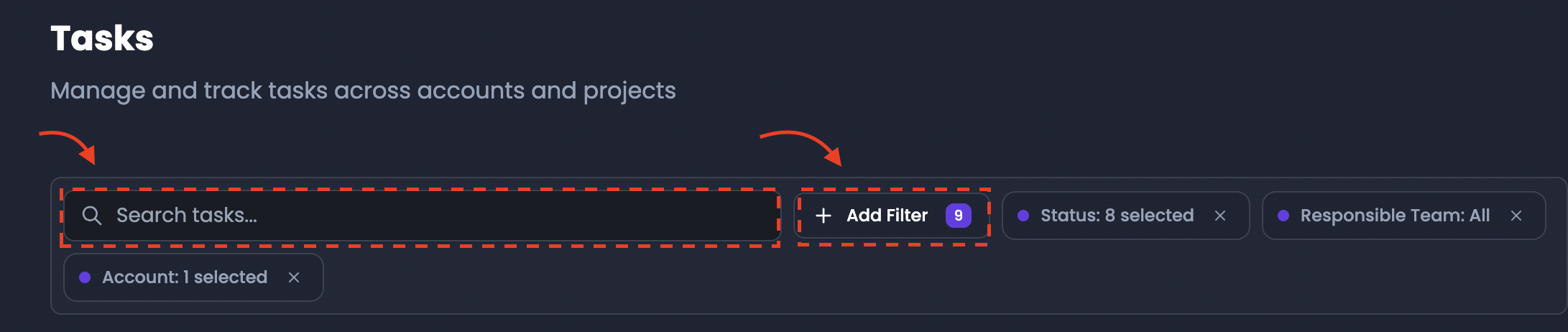
Use Search & Filter to quickly locate a work item without scrolling.
Search supports quick lookup by:
- Task ID
- Title
This is especially useful when the workload is high, when you need to jump to a known task, or when a teammate shares a task ID and you want to open it immediately.
Step 4: Choose how you want to view the task list (Kanban or Table)

Tasks can be monitored through two primary display modes, and both share the same filtering and grouping logic:
- Kanban View is a visual layout that organizes tasks into lanes (columns). This view is useful when you want to scan workload at a glance and understand workflow stages.
- Table View is a structured, row-based list. This view is optimized for reviewing a high volume of tasks, scanning details quickly, and sorting through columns.
Switching views does not change which tasks exist. It only changes how the same dataset is displayed.
Step 5: Group tasks to match how you manage work

Use Group By to define how tasks are categorized in the view. You can group by:
- Status
- Priority
- Due Date
- Responsible Team
Your Group By choice defines the visual structure:
- In Kanban, it defines the columns.
- In Table view, it defines the grouped sections (rows or grouped blocks).
Grouping is essential when the list is long, because it lets you organize tasks into meaningful “work buckets” instead of scanning a flat list.
Step 6: Sort and use quick actions to control the list

Two controls help you manage the organization inside each group:
- Sorting button adjusts the internal order of tasks within a specific column or group. This helps you bring the most important items to the top or organize by the order you prefer.
- Action button provides quick shortcuts, including options like Hide, which collapses groups so the page is easier to scan.
These controls are meant to help teams maintain a workable daily view of tasks without losing structure.