
How To Match Amazon and Shopify Products?
How do I match Amazon and Shopify products?
Matching products allows you to connect Amazon listings with Shopify variants and create a unified product inside EVA.
This process enables EVA to treat the same product across different channels as a single entity, which is essential for accurate analysis and operations.
Products can be matched in two ways:
- through Smart Matching Suggestions
- through manual matching
Step 1: Open the Unified Catalog
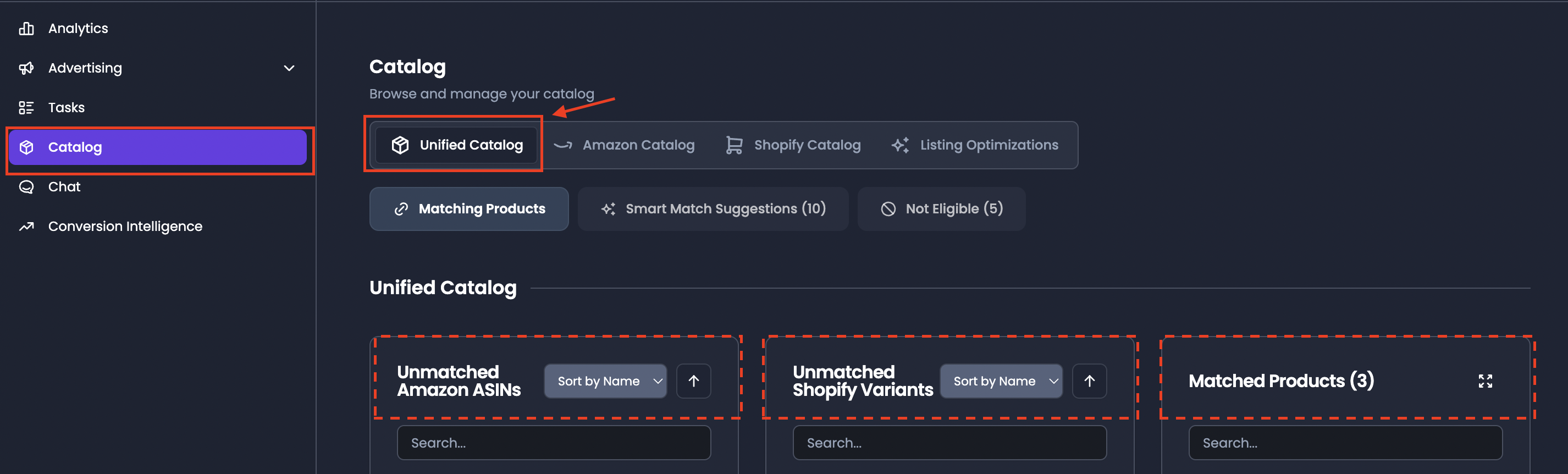
- Navigate to Catalog
- Select the Unified Catalog tab
This is where product matching takes place.
Step 2: Review Smart Matching Suggestions
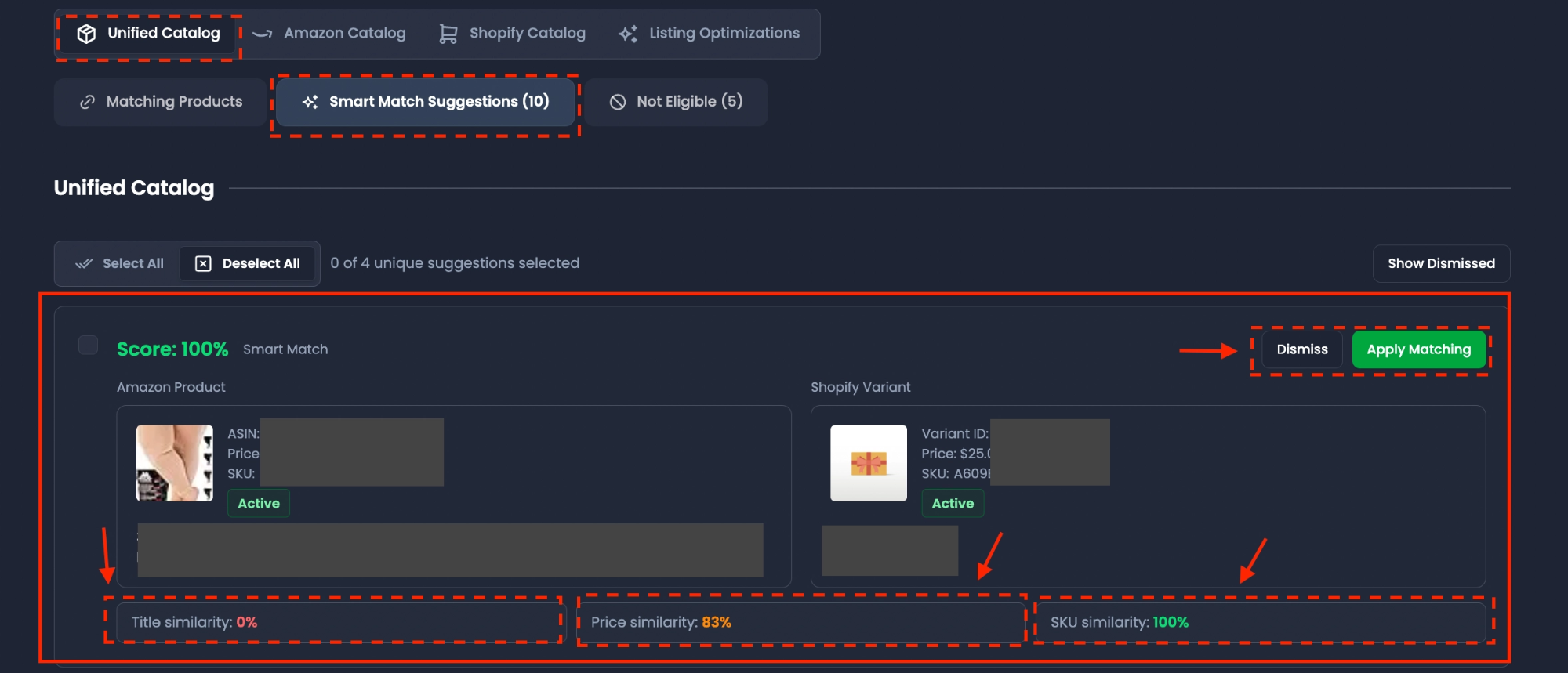
When you enter the Catalog page, EVA may surface Smart Matching Suggestions for products that appear to belong together.
These suggestions are generated automatically based on similarity signals such as:
- title similarity
- price similarity
- SKU similarity
Each suggestion includes:
- the Amazon product
- the Shopify variant
- a match score
- a similarity breakdown
If the suggestion is correct, click Apply Match.
This creates the unified product automatically without requiring manual drag and drop.
You can also:
- click Do it later to review the suggestion later
- click Dismiss & Don’t Show Again to remove the suggestion
Step 3: Locate unmatched products in the matching interface
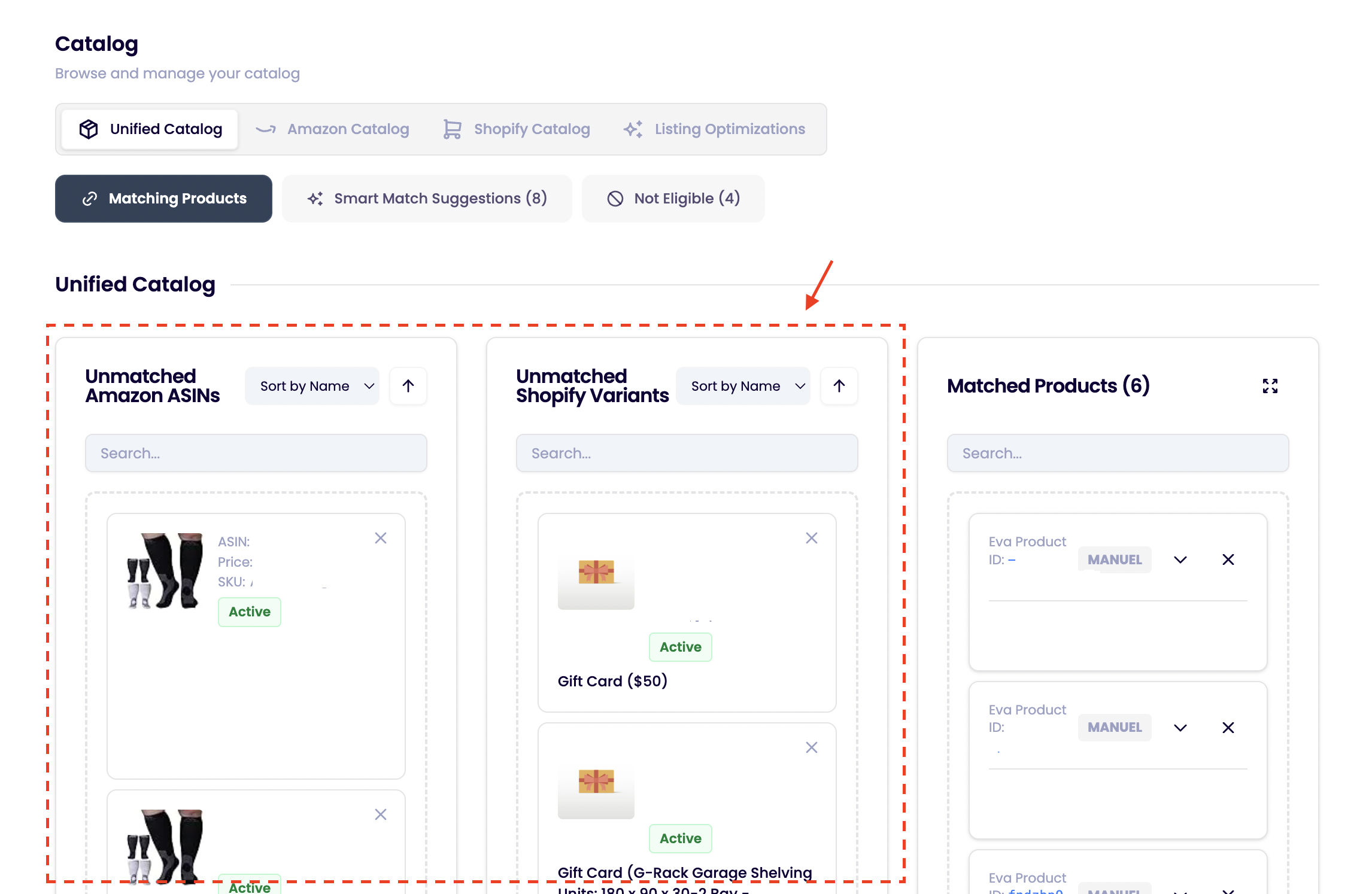
In the Unified Catalog, products are organized into matching columns:
- Amazon products
- Shopify variants
- matched products
Products that are not yet connected remain in the unmatched sections and can be matched manually.
Step 4: Match products manually
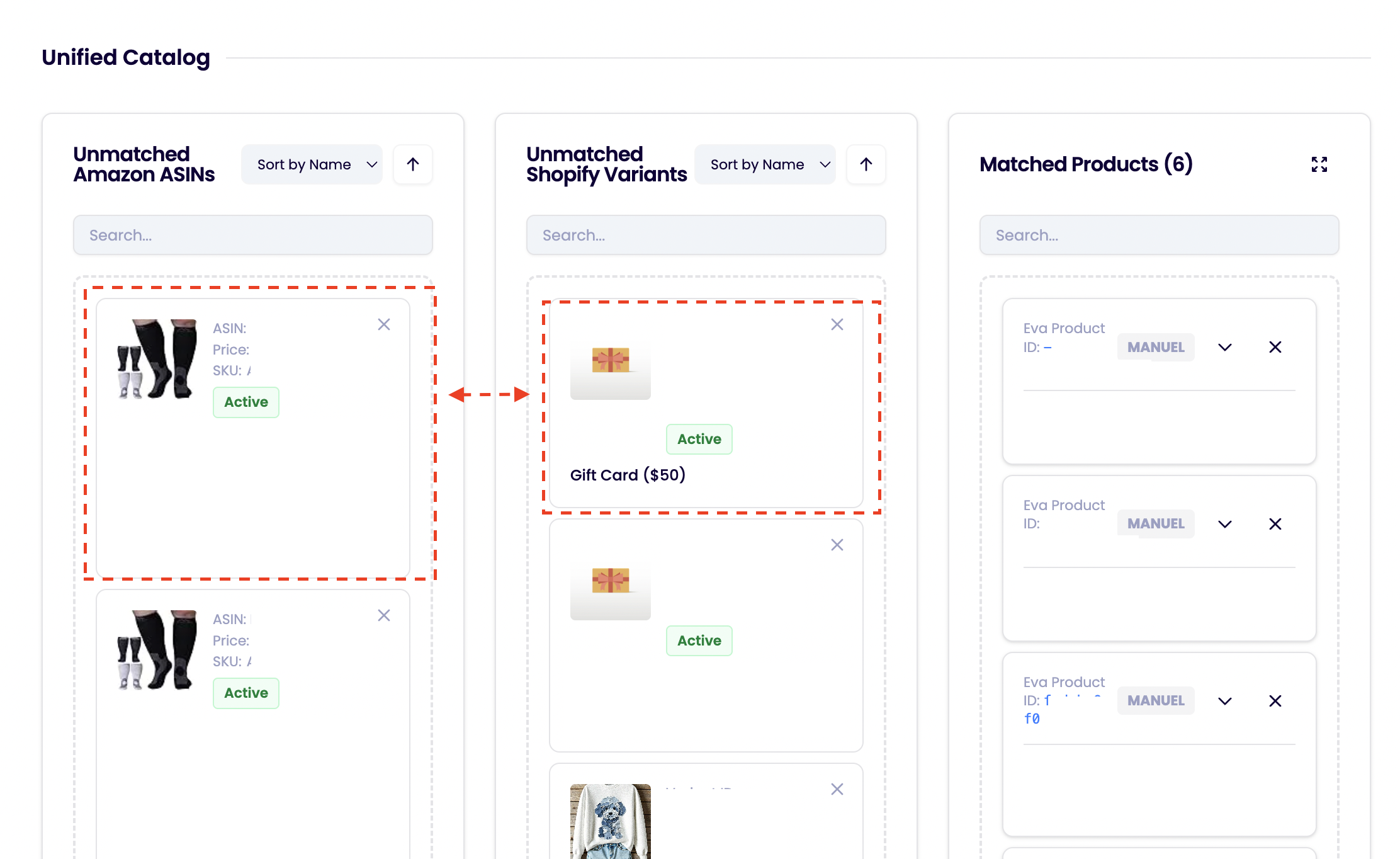
If a product is not included in Smart Matching Suggestions, you can match it manually.
To do this:
- Click and hold a product from one side
- Drag it to the corresponding product on the other side
- Release to start the matching action
This allows you to create a connection even when EVA has not suggested it automatically.
Step 5: Confirm the match
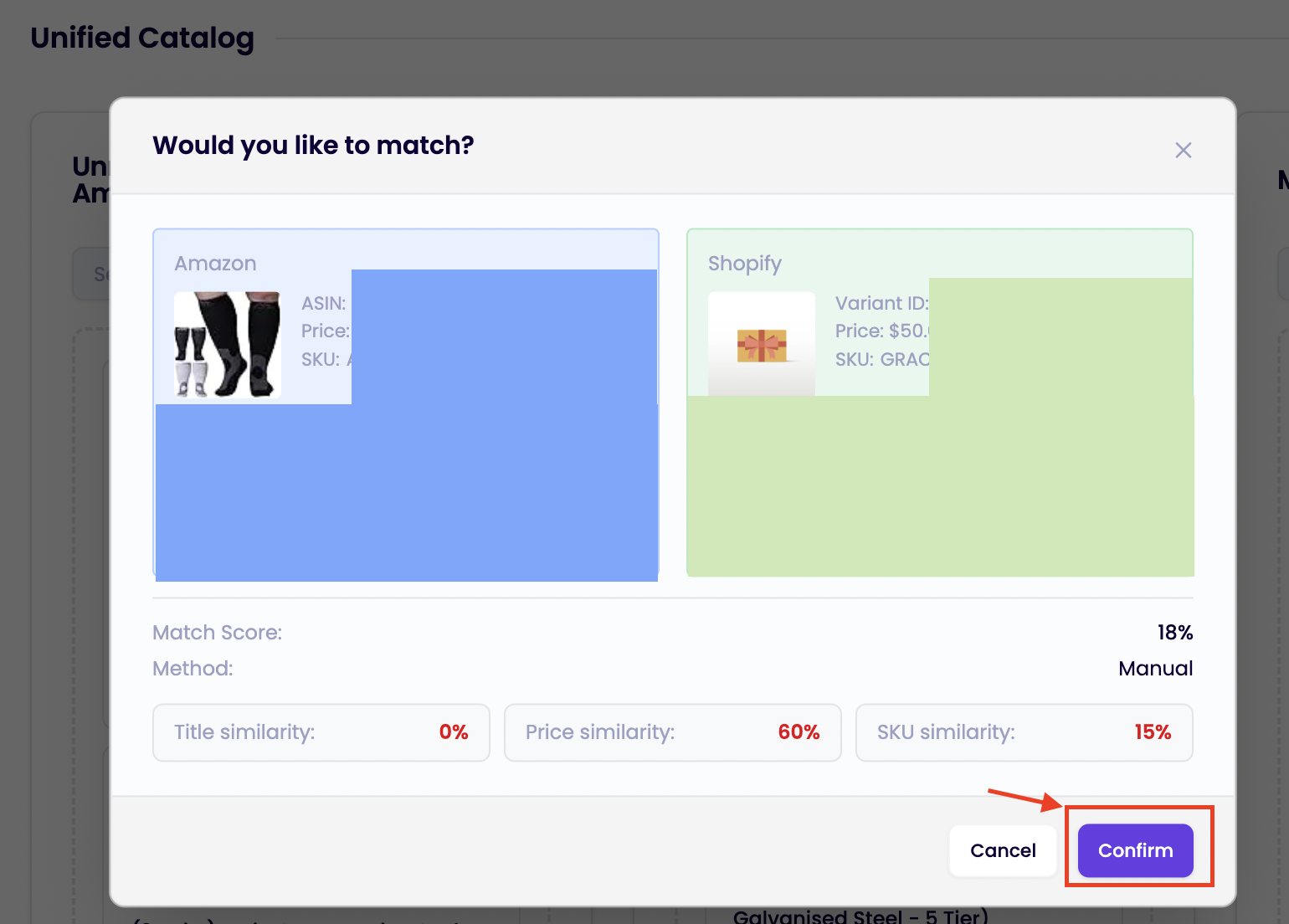
After initiating a match, EVA may show a confirmation step where you can review:
- Amazon product details
- Shopify variant details
- match score
- similarity breakdown
Click Confirm Match to complete the connection.
Once confirmed:
- a unified product is created
- both items become linked in EVA
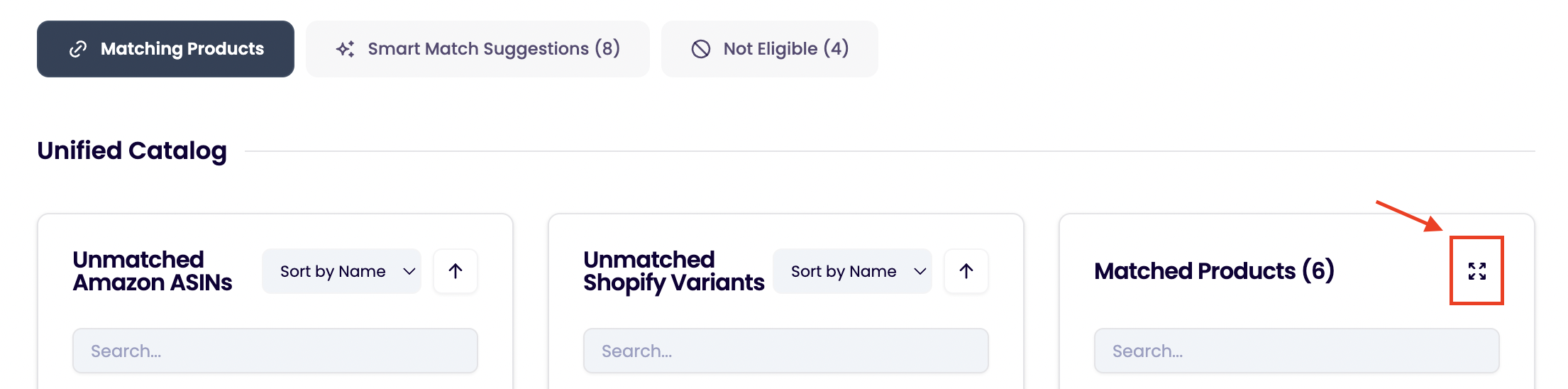
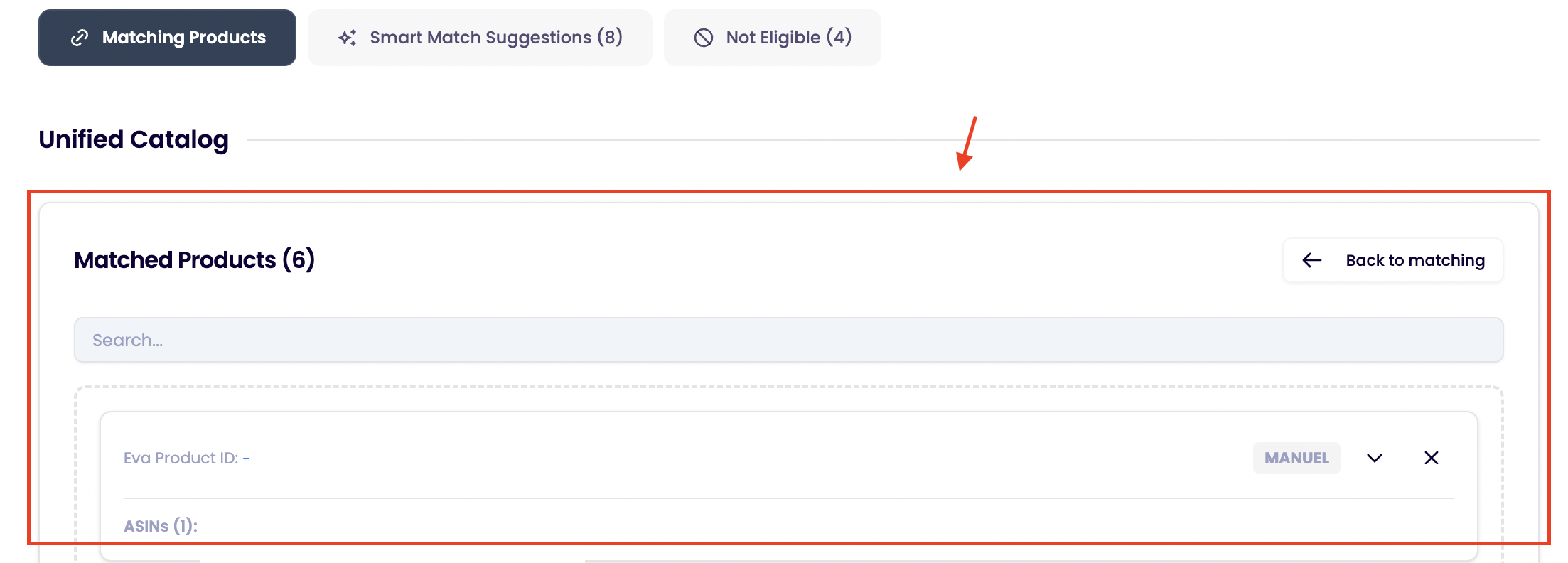
Step 6: Review matched products
After a match is applied, the connected products appear in the matched section as a Unified Product.
You can expand the unified product to review the linked Amazon and Shopify items.
Step 7: Manage or remove matches
If a match needs to be corrected:
- Open the unified product
- Review the linked items
- Remove the connection if needed
- Re-match the product correctly
This ensures matching remains editable over time.
Step 8: Use bulk matching actions
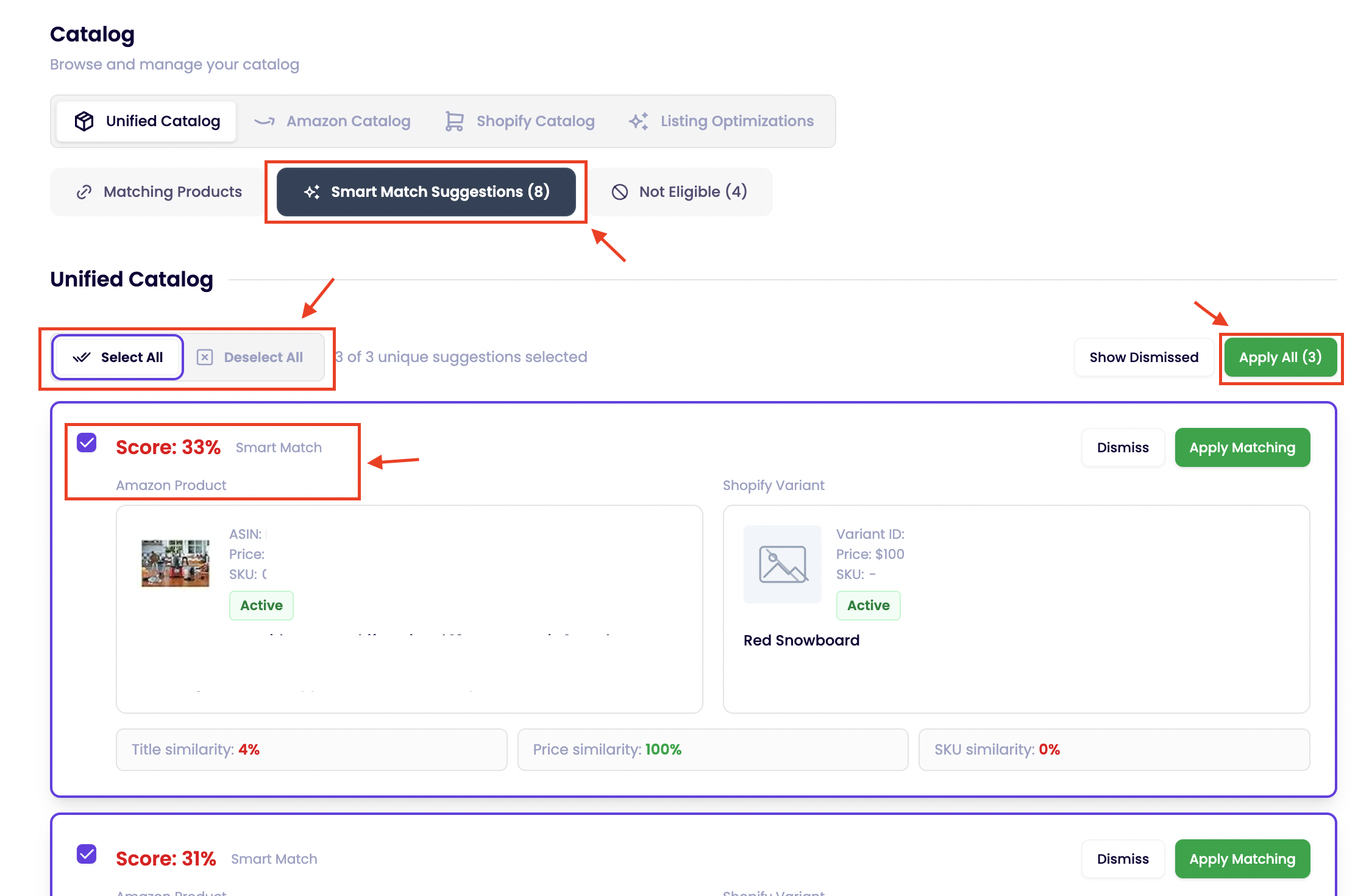
If EVA provides multiple Smart Matching Suggestions, you can speed up the process using bulk actions such as:
- Apply All
- selecting multiple items for matching actions
This is useful when reviewing large catalogs with many likely matches.
Pro Tip 💡
Start with Smart Matching Suggestions first.
They are the fastest way to create unified products and reduce the amount of manual matching required.