

Pricing Management: Finding SKUs Without Min/Max Price
Here is a quick tip for you! If you like to find out which SKUs don’t have min/max price, you easily create and sort the file. Please follow the steps below:
Step 1: Pricing Management
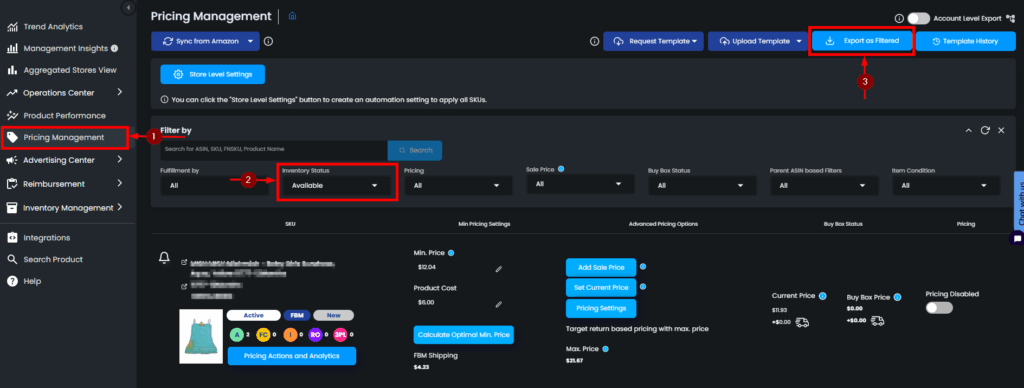
On the Eva platform, go to the Pricing Management section.
Step 2: Filter and Download
Filter your Inventory Status to “Available” and click on “Export as Filtered“.
Step 3: Sort and Filter Excel File
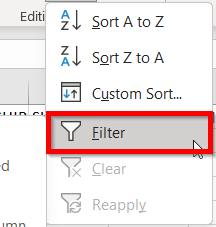
Once the template is ready, you can sort and filter the columns. You can select min price and max price to set a filter as ‘0’. In this way, you will be able to see which ASINs and SKUs don’t have min/max price information.

Step 4: Remove the Filter
Before uploading the new file to Eva, make sure to remove the filter from the excel and do not change the format of the file.
Step 5: Upload the File
When uploading the new file to Eva, make sure to upload as Pricing Template as CSV.
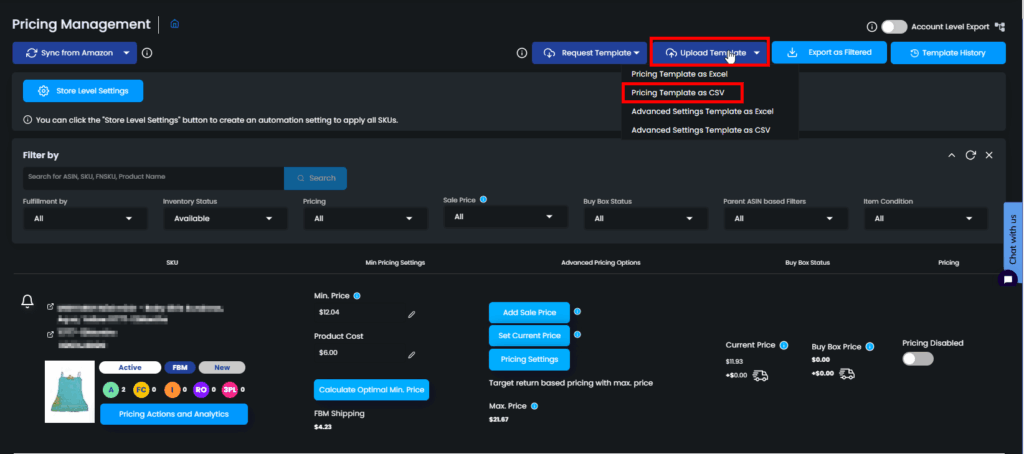
After it’s completed, Eva will take into account of the changes you have made.