
How Can I Filter, Group, and Organize My Tasks?
Overview
The Tasks Page is designed to support daily operations, which usually means large volumes of work items. The interface provides a set of controls: Search, View Mode, Group By, Sort, and Action that all work together to help teams organize work into a manageable view.
Importantly, both Kanban and Table view share the same organizing logic. So you can change presentation without changing the underlying dataset.
Step 1: Use Search to reduce the list quickly
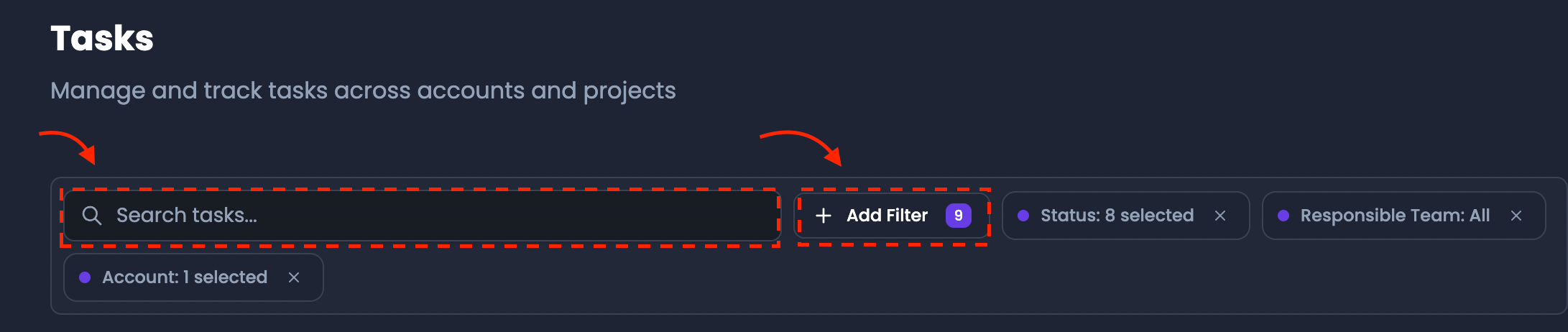
Use Search & Filter to find tasks by:
- Task ID
- Title
This is the fastest way to locate a known task or confirm whether an item already exists.
Step 2: Use “Add Filter” to filter your Tasks and Tickets
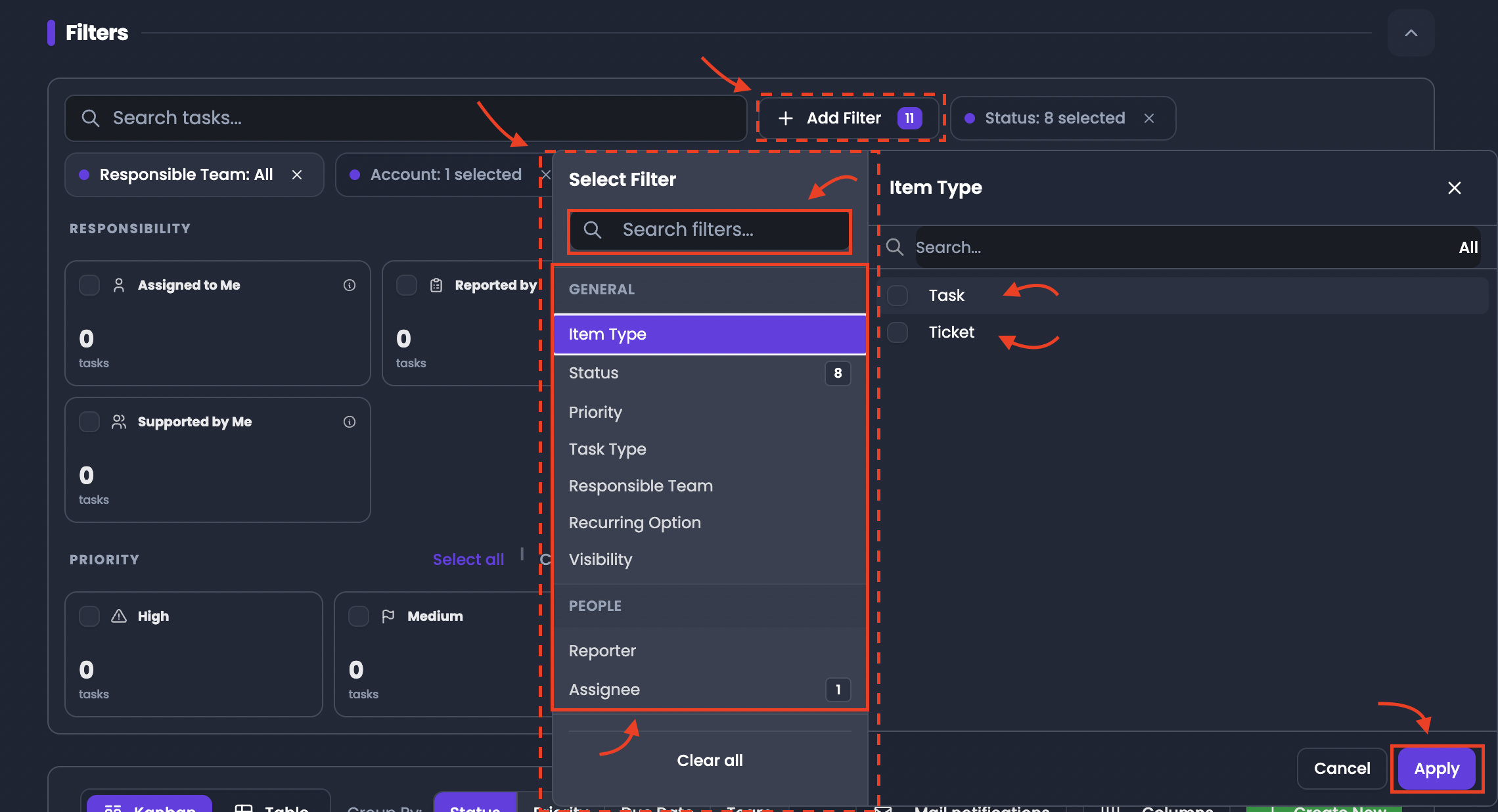
When you need to focus on a specific subset of work items, use the Filters section at the top of the Tasks Page. This area helps you reduce a large task list into a more manageable working set by showing only the tasks and tickets that match the criteria you select.
The filtering experience on this page has two layers:
- the visible filter cards shown directly in the Filters section
- the Add Filter button, which lets you apply more detailed field-based filters
These two layers work together on the same dataset.
This is especially useful when you are trying to isolate:
- only tickets vs. planned tasks
- a specific responsible team’s workload
- tasks assigned to one person
- overdue or upcoming items
- recurring tasks that reopen automatically
Use the visible filter cards for quick filtering
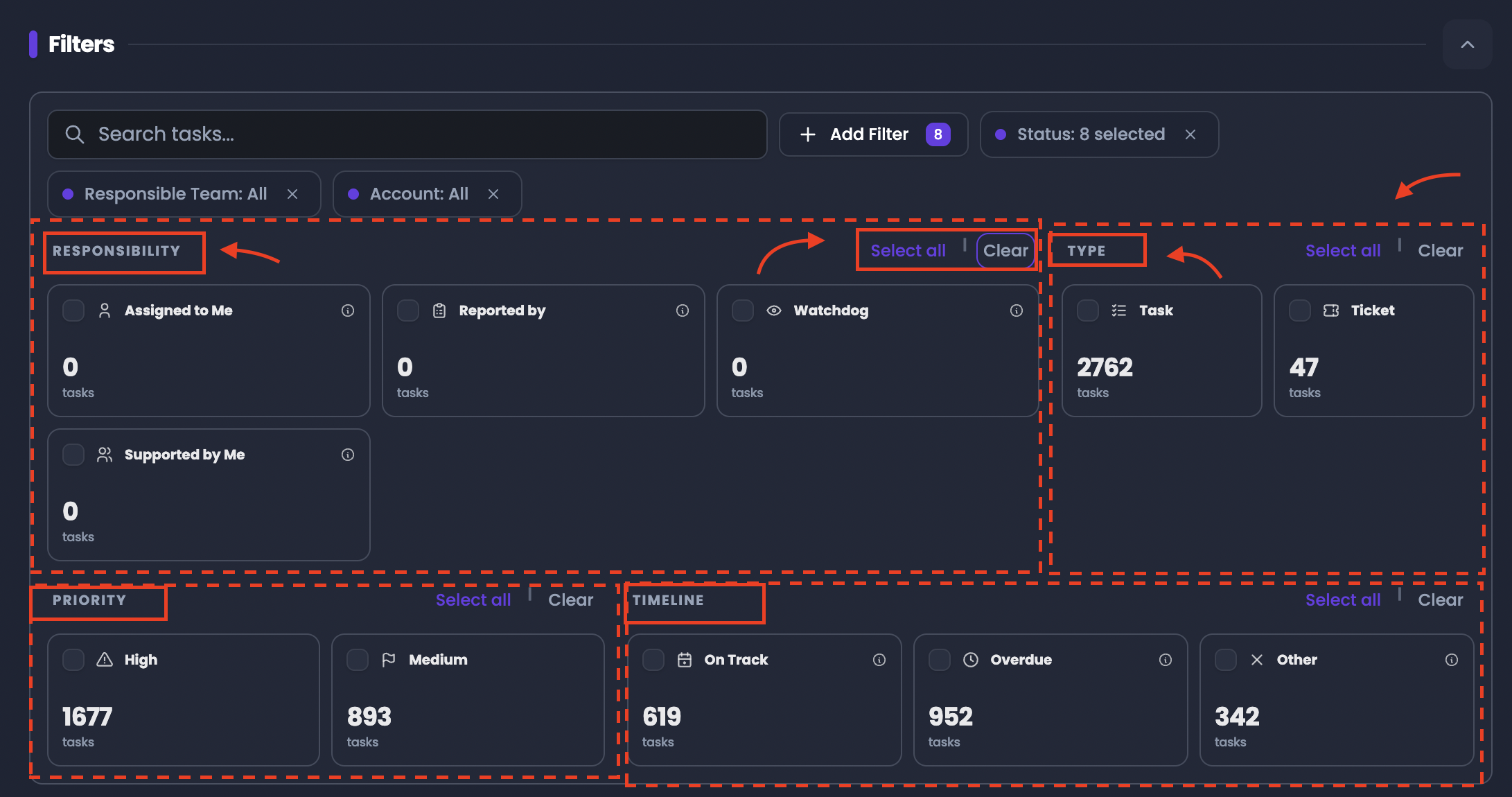
Before clicking Add Filter, the page already displays grouped filter cards that let you narrow the task list visually. These cards show task counts and allow you to select filtering options directly from the main Filters area.
The visible card groups can include categories such as:
- Responsibility
- Type
- Priority
- Timeline
Each card represents a filterable subset of the task list. For example, you may see cards such as:
- Assigned to Me
- Created by Me
- Watchdog
- Task
- Ticket
- High
- Medium
- On Track
- Overdue
- Other
These cards allow you to filter the dataset quickly without opening an additional panel. They are useful when you want a fast operational view based on common workload categories already surfaced on the page.
Some groups also provide controls such as:
- Select all
- Clear
These allow you to apply or reset selections inside that visible filter group.
Use Add Filter for more detailed filtering
If the visible filter cards are not enough, click the Add Filter button to apply more specific filters.
Add Filter opens a structured filter panel where filters are organized by category. You first choose a filter category, and then select the exact values you want to include. Once applied, those filters appear as active filter chips above the task list.
This lets you build a more precise filtered view on top of the visible card-based filtering system.
Filter categories available in Add Filter
Filters are organized into structured categories. Each category focuses on a different part of the task record.
General
Use General filters when you want to control the type and workflow state of tasks.
Includes:
- Item Type
- Status
- Priority
- Task Type
- Responsible Team
- Recurring Option
- Visibility
People
Use People filters when you want to isolate tasks based on who is involved.
Includes:
- Reporter
- Assignee
- Watcher
- Supporter
- Mentioned
Entities
Use Entities filters when you want to narrow work by client and account context.
Includes:
- Account
- Project
- Subscription
- Store
Products
Use Products filters when tasks are tied to a specific product scope.
Includes:
- Brand
- Tag
- Parent ASIN
- ASIN
- SKU
Dates
Use Dates filters when you need time-based control over workload.
Includes:
- Created At
- Last Updated
- Original Due Date
- Due Date
- ETA
What happens when you apply filters?
Once you select filters, the Tasks Page updates to show only the tasks and tickets that match your selected criteria.
This means you are no longer scanning the full task list. Instead, you are working inside a filtered operational subset built around the dimensions you selected.
Applied filters appear as filter chips above the task list, making it easier to see which constraints are currently active.
Filters affect both:
- Kanban View
- Table View
So you can filter first, then switch between views depending on whether you want a visual workflow layout or a structured row-based review.
Step 3: Choose a view that matches your workflow

Use View As button to toggle between:
- Kanban View
- Table View
If you want to track flow visually, use Kanban. If you want to scan many tasks quickly, use Table.
Step 3: Group tasks to create structured daily “lanes”

Use Group By to categorize tasks by:
- Status
- Priority
- Due Date
- Responsible Team
Grouping changes the layout structure:
- Kanban columns represent the selected grouping.
- Table view displays grouped sections aligned to the same grouping.
Step 4: Arrange mail notification settings
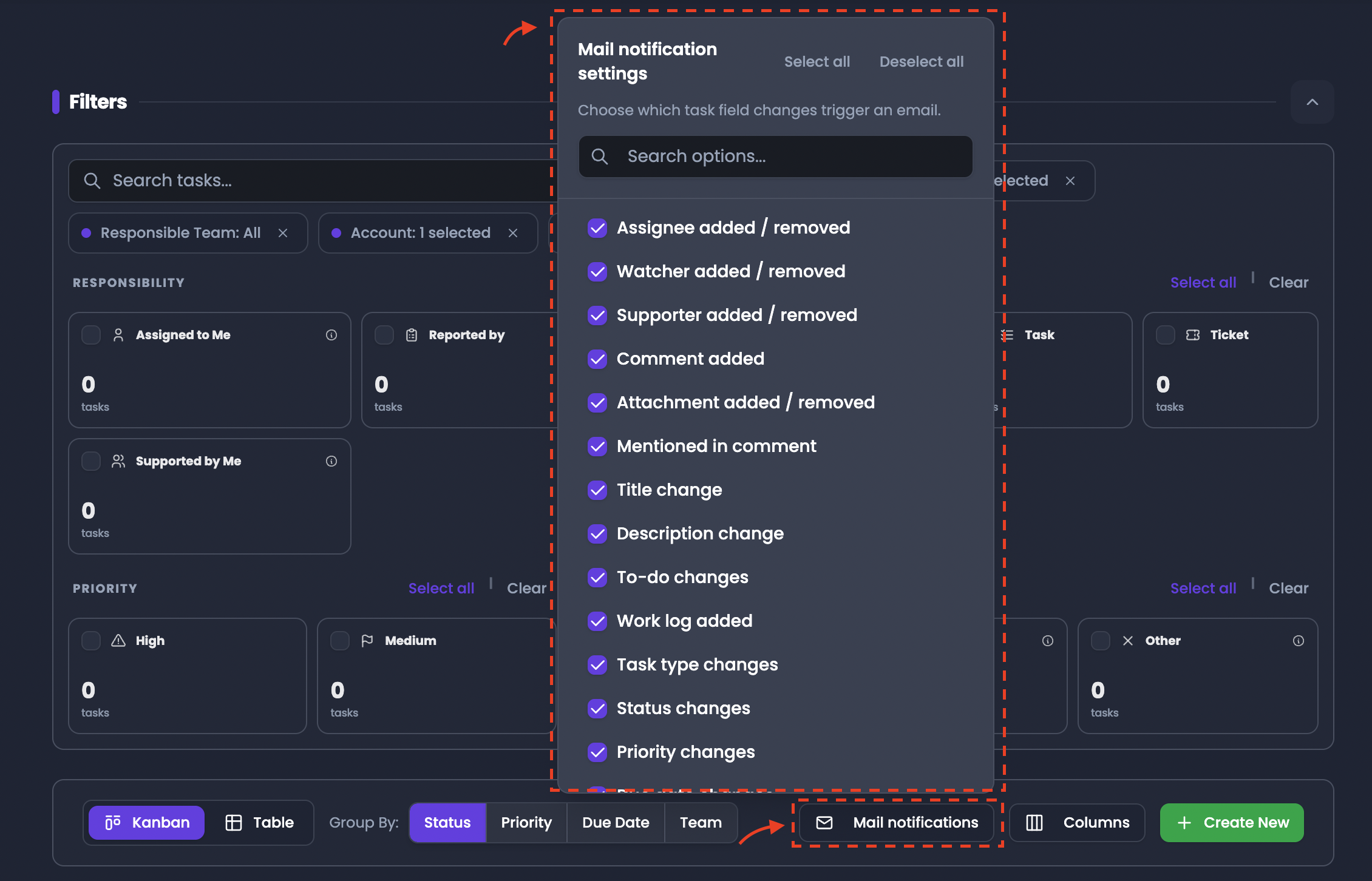
If you want to control when EVA sends email notifications for task updates, use the Mail Notification button. This setting allows you to choose which task field changes should trigger an email, so you receive alerts only for the updates you care about.
How to set it up
- In the relevant task (from the Tasks list), open the Detail View panel.
- Click the Mail Notification button.
- Select the task fields you want to track.
What this controls
Once configured, EVA will send an email notification only when the selected fields change. This helps you reduce unnecessary emails while still staying informed about critical updates.
Step 5: Use “Columns” to filter Tasks by Status
If you want to focus on tasks in specific status stages (meaning: which stage the task is currently in), use the Columns button. This control helps you narrow your view so you’re only reviewing the status categories you care about, instead of scanning the full set of tasks.
How to filter by Status using COLUMNS
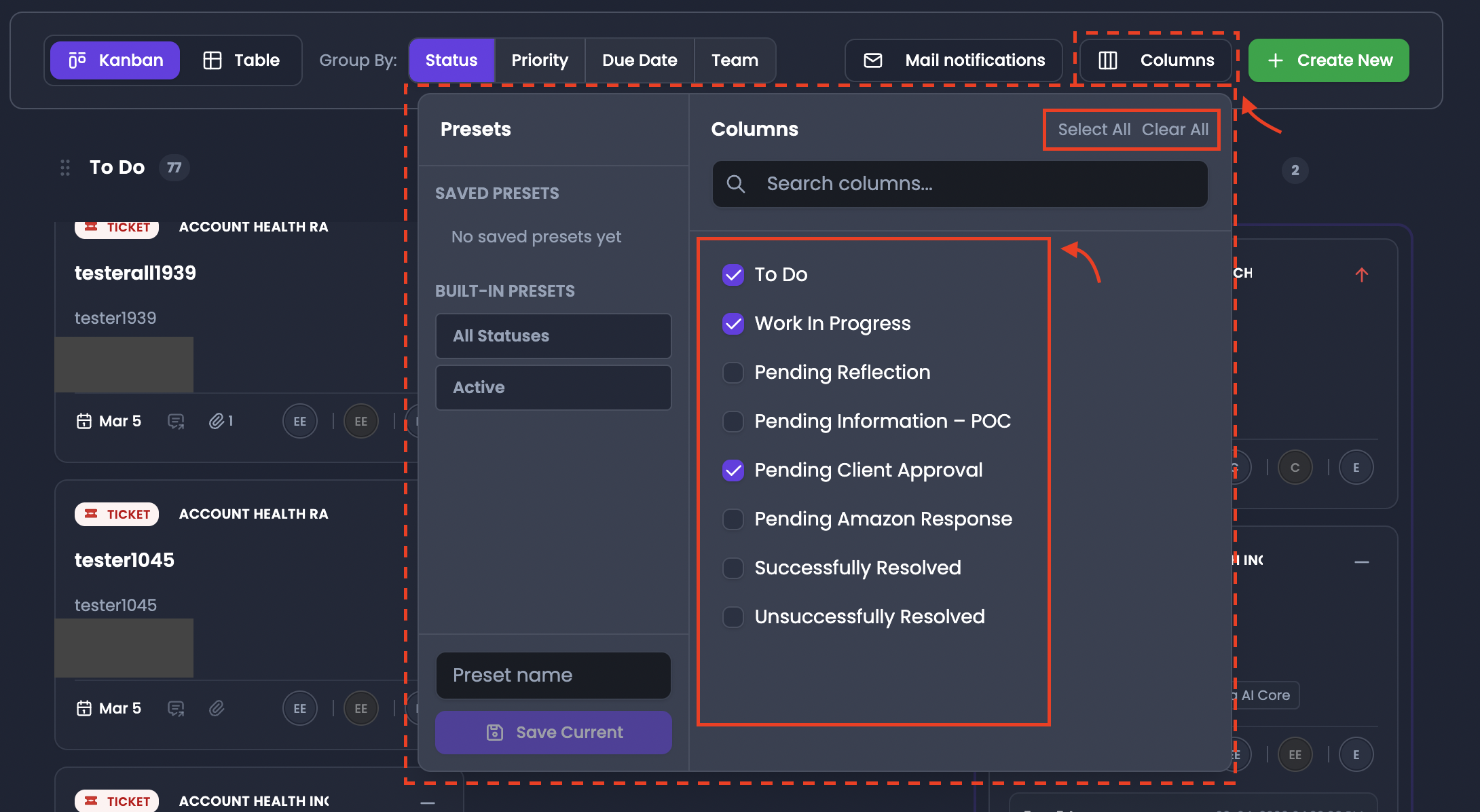
- Click the Columns button.
- In the Colums panel, select the status values you want to review.
Once selected, your table output becomes easier to read because you are working within a more focused “status scope” (e.g., only active stages vs all stages).
Use presets for repeatable status views
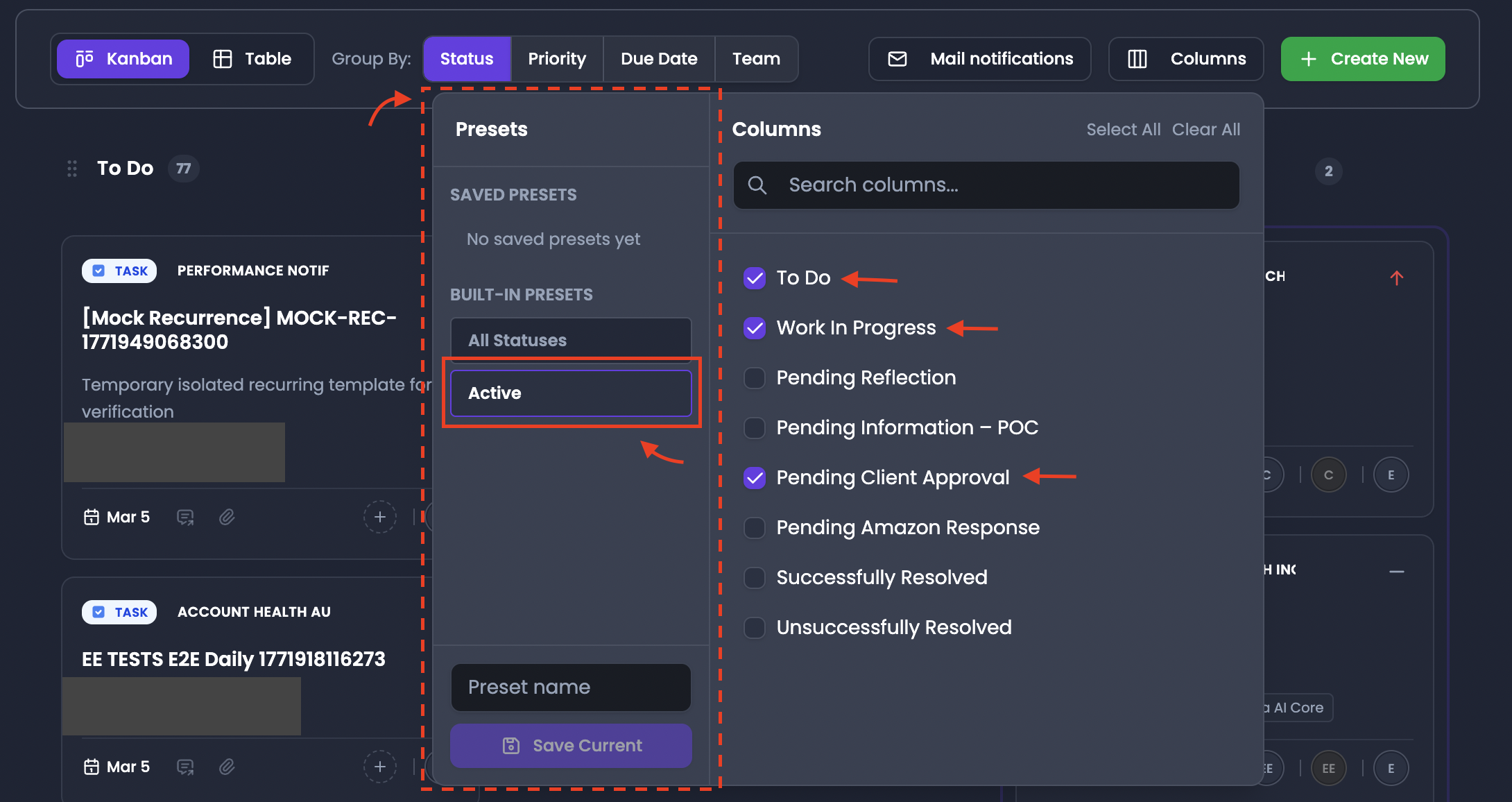
On the left side of the Columns panel, you can use presets to avoid re-selecting statuses every time.
You can either:
- Select an existing preset, or
- Create a new preset by selecting the exact statuses you want
Active preset options typically include:
- Viewing all statuses
- Viewing active statuses
You can also create your own preset for any custom workflow (for example, a preset focused only on late-stage tasks).
Save a new preset
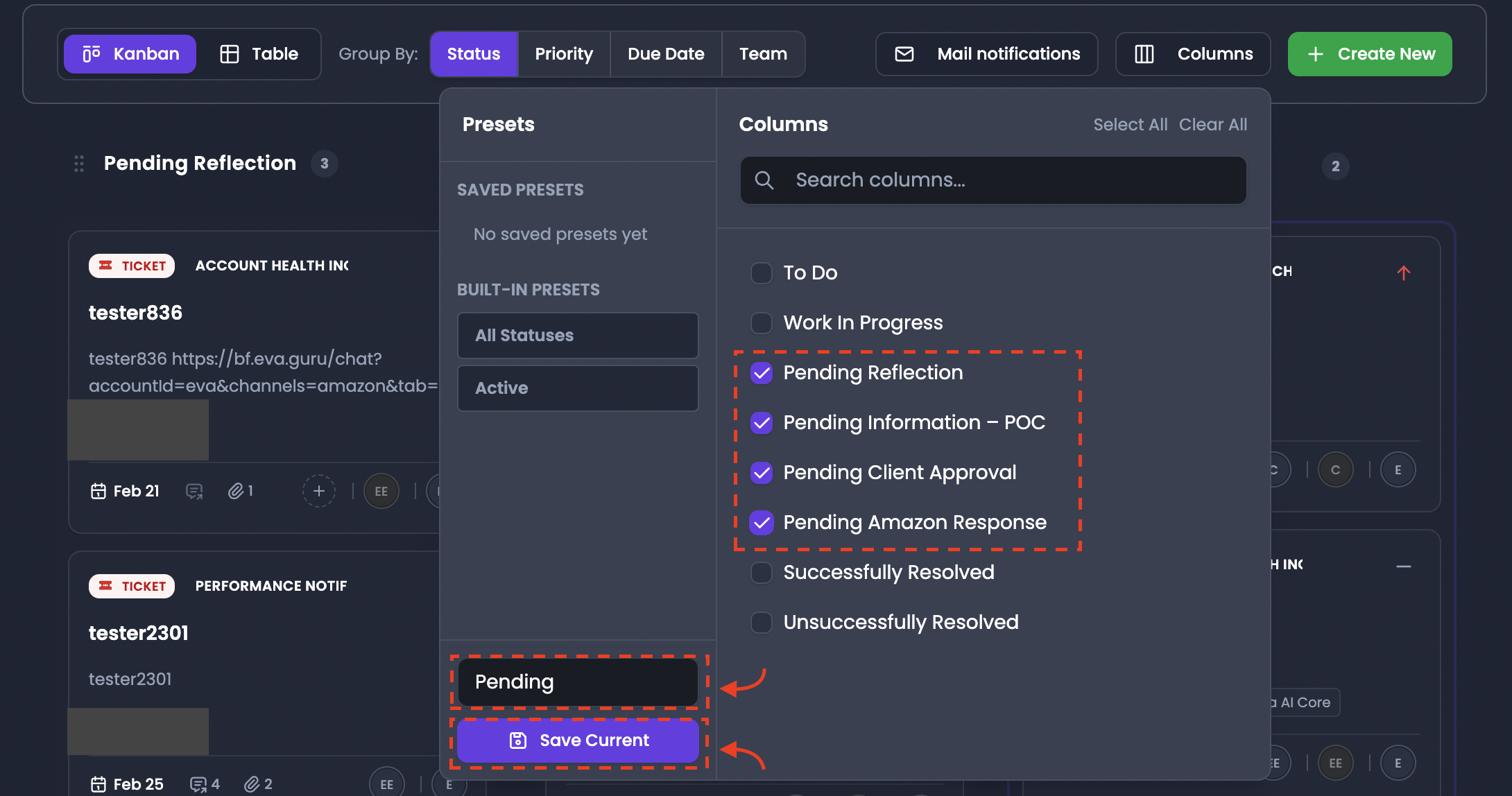
After selecting the statuses you want:
- Enter a name in the Preset name field.
- Click Save Current.
Once saved, your preset becomes available for future use so you can quickly switch your task status view without rebuilding the configuration.
Step 6: Sort inside a group to prioritize execution order

Use Sort button to adjust the order of tasks within a specific group or column. This is helpful when you want the most urgent tasks at the top or when you want a consistent internal ordering.
Step 7: Use Action shortcuts to simplify the view

Use Action button for quick shortcuts. For example, Hide option collapses grouped sections so you can focus only on the groups you need.